Breakpoints tool
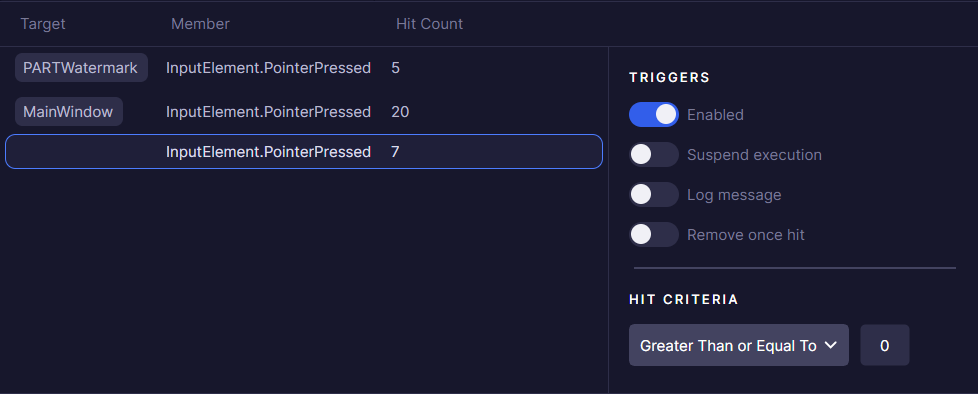
The Application Breakpoints Tool allows you to monitor and debug property changes and events in Avalonia applications without modifying code. Breakpoints can be set on properties or events to help diagnose issues and understand application behavior.
A breakpoint is considered to be "Hit" (and correspondingly, increment "Hit Count" value, or suspend execution) when:
- Property is changed (for property breakpoints) or event is raised (for event breakpoints).
- Breakpoint is enabled.
- If breakpoint has a target, it matches source of the property/event.
- Hit count criteria are satisfied.
Depending on how breakpoint was created, it might have Target assigned to it. For example, event breakpoints without target are considered global, and are triggered when any element has this event raised.
Adding breakpoints
Adding a property breakpoint
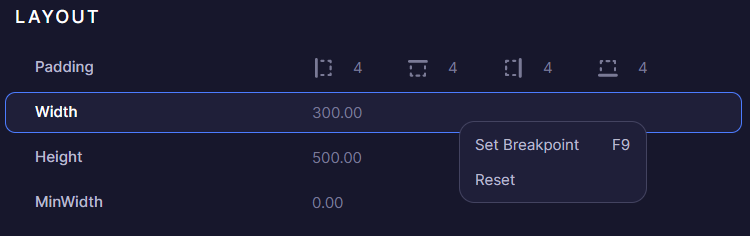
On the Properties list each dependency property has a Set Breakpoint context menu item.
Created breakpoint is bound to the element on which it was set.
Adding an event breakpoint
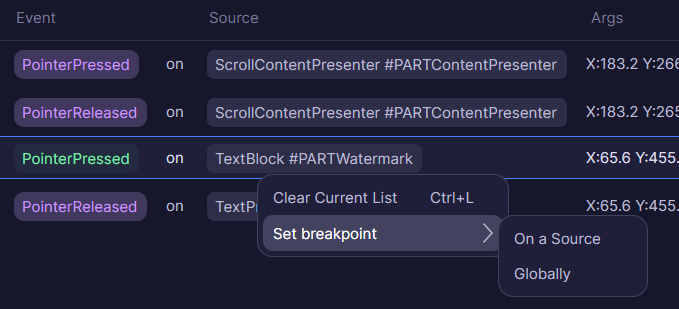
On the Events tool each raised event has an option to set a breakpoint.
Setting On a Source will bind breakpoint to the source element this previously raised event had. Alternatively, the Globally option will create an unbound breakpoint, which gets hit on any element with this event.
It's also possible to set a breakpoint bound to a specific routed chain element, or from the Event Listeners flyout.

Managing breakpoints
By default, any breakpoint only increments Hit Count, when it's triggered.
There are three other options that can be enabled:
Suspend execution
Similar to how breakpoints work in a typical IDE, stopping execution and navigating you to the breakpoint location.
This option can be useful when there is a need to see what exactly triggered a property change or an event, by reading the stack trace in the IDE.
The connected application must have a third-party debugger attached. Otherwise, this breakpoint is ignored.
Since Developer Tools uses standard Debugger.Break() method, any conventional IDE with a debugger will work: Visual Studio, Rider or VS Code.
Unfortunately, there is no clean way to override a breakpoint's stack trace. Because of this, the IDE might show internal code from the Debugger.Break location.
Log message
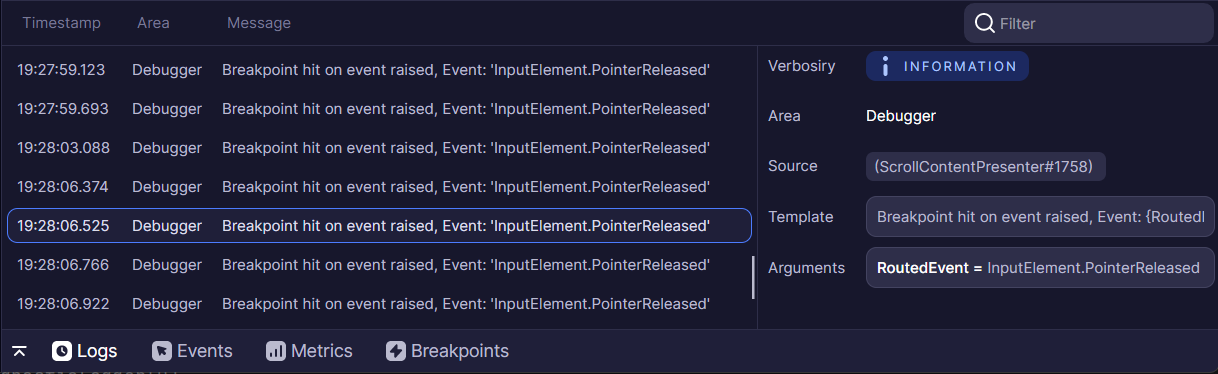
When enabled, breakpoint will write a log message into Logs tool.
Removal
As the name suggests, a breakpoint is removed once it is hit. This can be combined with other options.