Assets tool
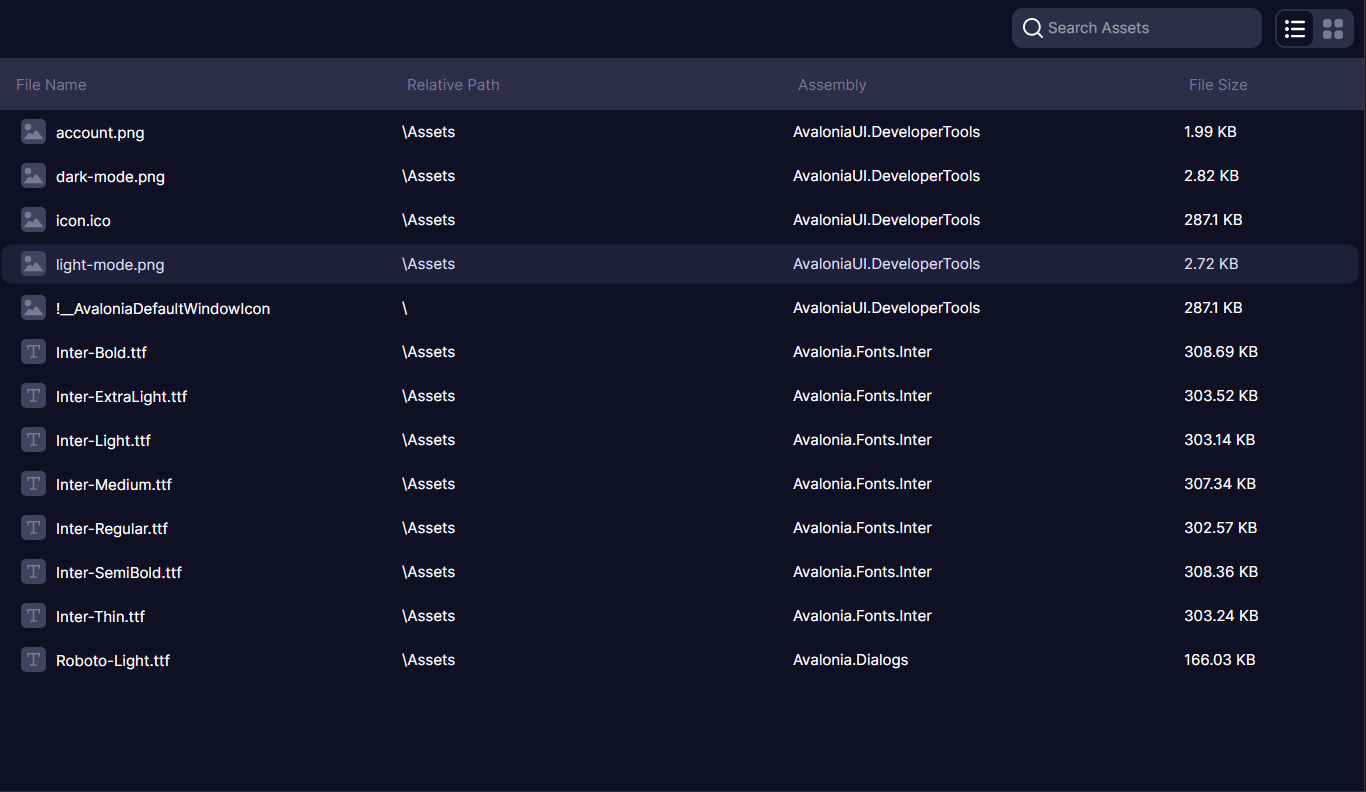
The Assets tool displays a list of all Avalonia resources embedded in the running process.
This includes embedded assets from dependencies such as third-party themes or icon libraries, which are also available as Avalonia resources.
Navigating the asset list
The Assets tool presents all embedded resources in a grid view. Each row shows the asset name and its assembly source. You can use the search field at the top to filter assets by name or path.
Asset URIs follow the avares:// scheme. For example, avares://MyApp/Assets/logo.png refers to a file named logo.png in the Assets folder of the MyApp assembly.
Asset context menu
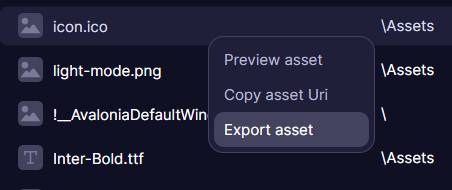
Right-click any asset to open the context menu. From here you can copy the absolute asset URI or export the asset to the file system.
The copied URI can be used directly in your XAML. For example, after copying an image asset URI:
<Image Source="avares://MyApp/Assets/logo.png" />
Asset preview
The grid listing shows limited information about each resource to avoid reading them into memory unnecessarily.
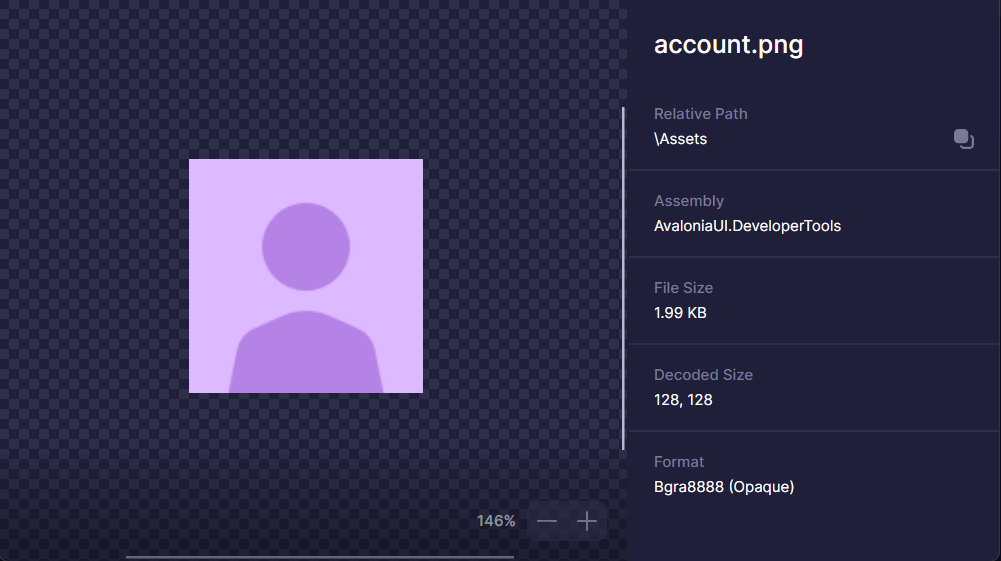
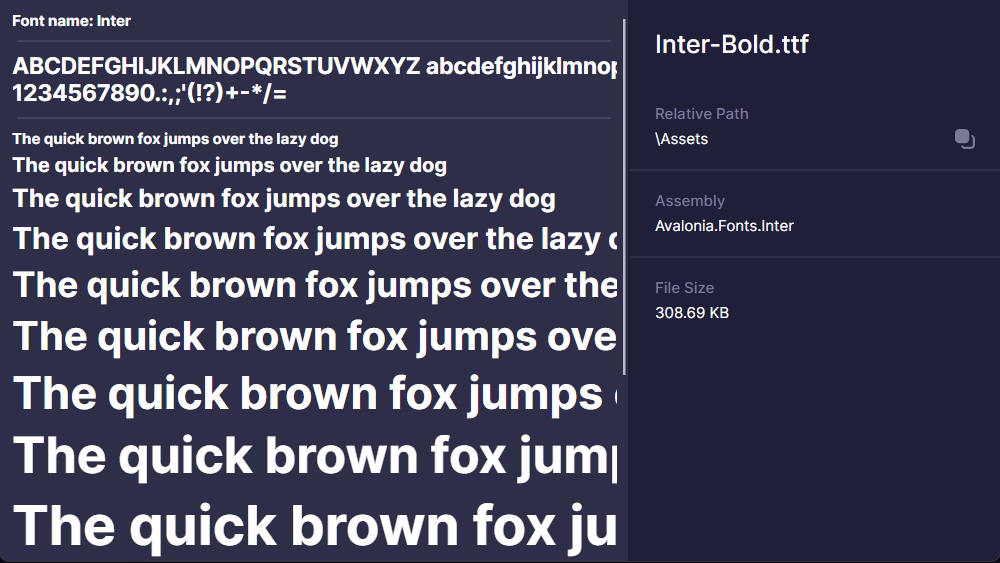
To preview an asset, double-click it or select Preview from the context menu. The tool downloads the asset from the application process and displays it. Supported preview formats include:
- Raster images (PNG, JPEG, BMP, and other bitmap formats)
- Fonts (TrueType and OpenType)
- Text files (XAML, XML, JSON, and plain text)
For image assets, the preview also shows the bitmap format and decoded pixel size.
Any asset larger than 100 MB cannot be previewed.