Attaching DevTools to the previewer
This feature is experimental and may change in future releases.
The AvaloniaVS and AvaloniaRider extensions run the previewer window in a full application process, but without a real windowing subsystem. This limits the diagnostic features available to you, making it harder to analyze visual trees and inspect actual control placements.
Because Developer Tools can run out-of-process, you can attach it to a previewer process and get full diagnostic capabilities, including visual tree inspection, property editing, and layout analysis.
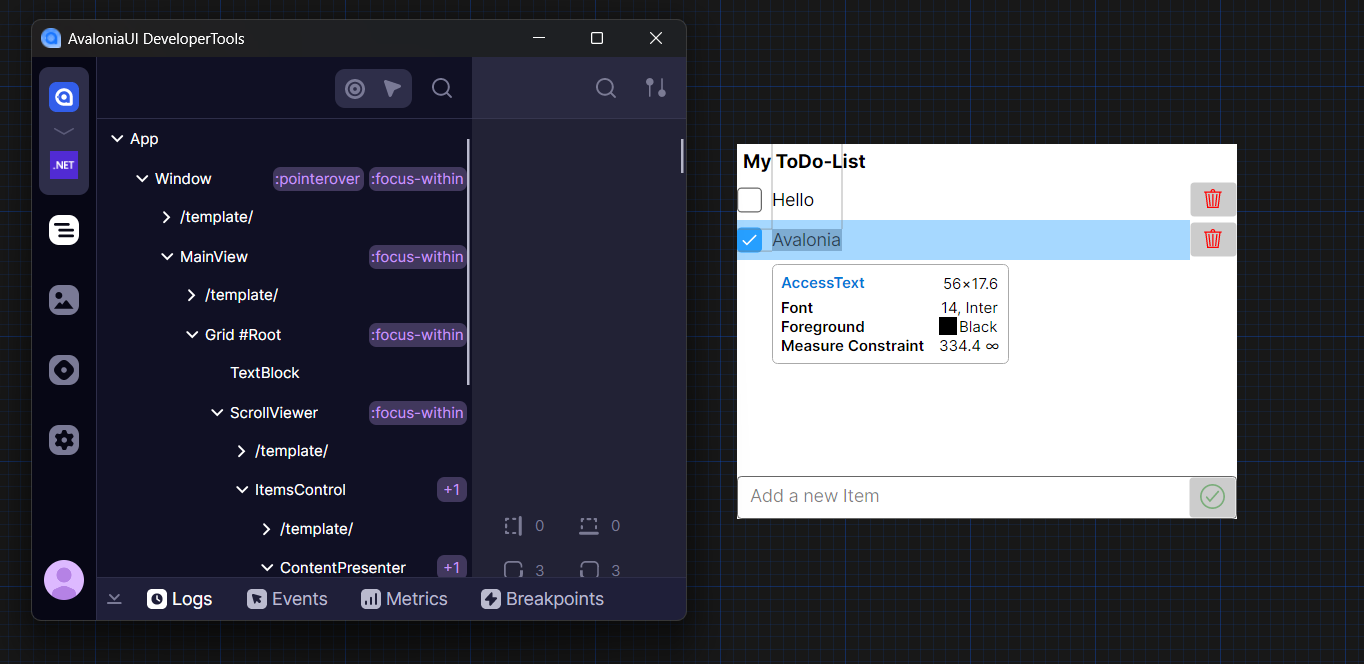
Configuration
Preview extensions do not support keyboard input, so AutoConnectFromDesignMode is the only connection option. Add the following to your application startup code:
this.AttachDeveloperTools(o =>
{
    o.AutoConnectFromDesignMode = true;
});
By default, DeveloperToolsOptions.Runner is disabled when IsDesignMode is true. This prevents unnecessary processes from opening each time you open a XAML file in your IDE.
Because the runner is disabled, you need to open the Developer Tools application independently (the same approach used for browser and mobile targets).
Troubleshooting
Shortcuts are ignored
As noted above, previewer extensions do not listen for keyboard input. You cannot use keyboard shortcuts to trigger Developer Tools from within the previewer. Instead, use the action buttons or keyboard shortcuts directly in the Developer Tools application window.
Developer Tools opens too many windows
Developer Tools opens one tool window per connected process. If you have multiple XAML previewer tabs open in your IDE, a separate tool window opens for each one. To reduce clutter, close any previewer tabs you are not actively inspecting.