Attaching DevTools to the remote tool
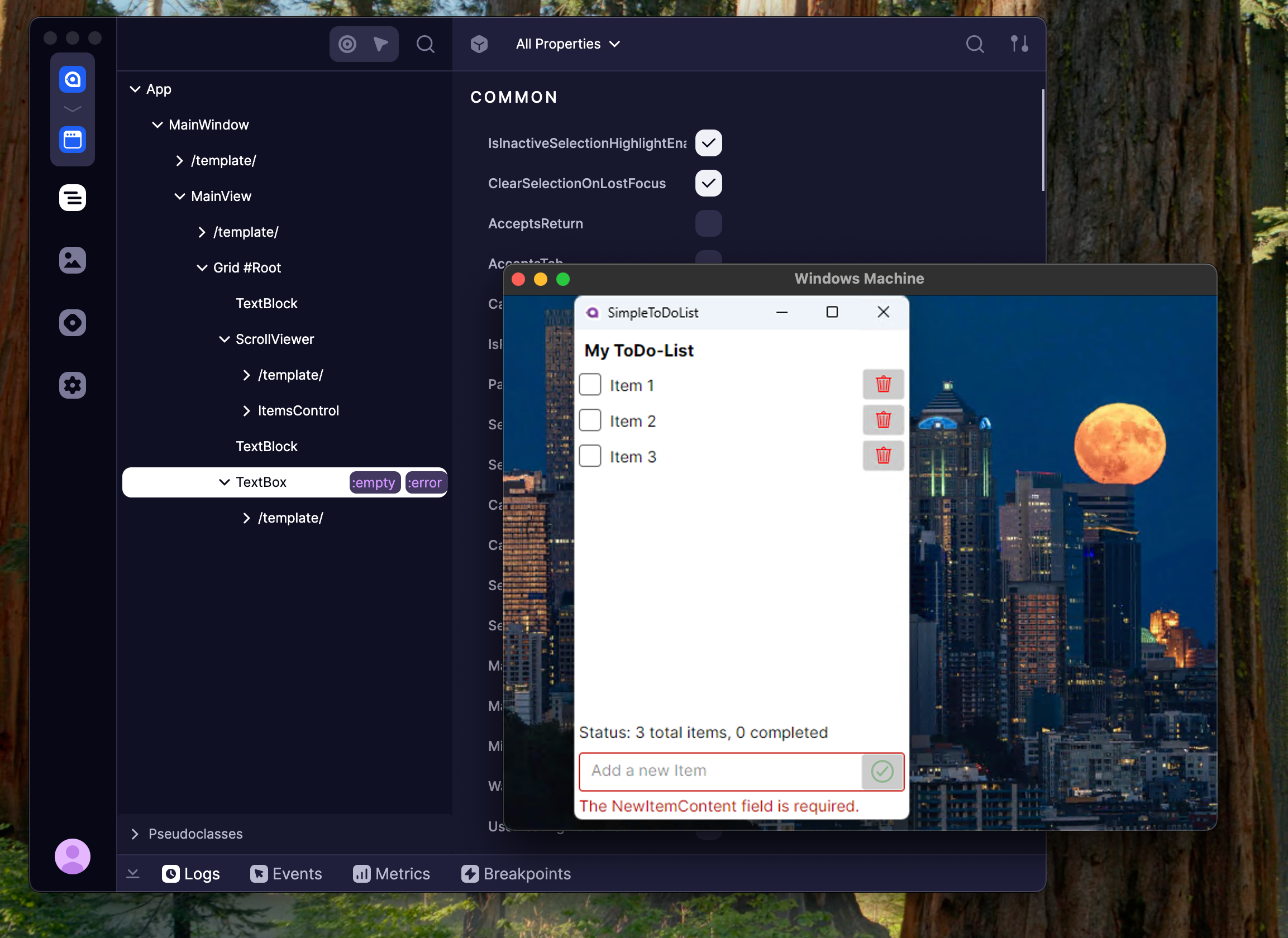
Developer Tools can be connected to applications running on different machines. This guide covers two scenarios:
- Local network access (e.g., Virtual Machines or devices on same Wi-Fi)
- Internet access using VPN (recommended for security)
Developer Tools runs an HTTP server on port 29414. The key is ensuring this server is accessible from the connecting machine.
Local network access
-
Retrieve local-network IP address of the machine running
Developer Tools:- Windows: Open Command Prompt and run
ipconfig. - macOS/Linux: Open Terminal and run
ip addrorifconfig. - Look for an IPv4 address that starts with
192.168., used on most home networks.
- Windows: Open Command Prompt and run
-
Configure your application to use this IP:
this.AttachDeveloperTools(o =>
{
    o.Protocol = DeveloperToolsProtocol.CreateHttp(IPAddress.Parse("YOUR_LOCAL_NETWORK_HOST_IP"));
});
- Start
Developer Tools(via avdt command) - In the settings, make sure that Allow Any IP is enabled. If not, enable the option and restart the app.
- Launch your application on the second machine.
- Press F12 to connect.
Ensure firewalls on both machines allow port 29414.
Internet access via VPN
While it's possible to avoid VPN and set up port forwarding on the public network, it's not recommended. Keeping ports open is generally considered bad practice.
Instead, this tutorial uses VPN to set up limited access between machines. Tailscale is chosen as the example VPN in the following steps.
Ensure that Tailscale CLI can be used on the machine with developer tools. See Tailscale CLI.
-
Follow the
TailscaleQuick Start guide to install it on both machines and set up access between them. This tutorial specifically focuses on theMagicDNSfeature. -
Once
Tailscaleis installed and connected on both devices, it's necessary to serve the29414port from the machine with installedDeveloper Tools. Run one of the following commands:# Windows
tailscale serve 29414
# macOS
/Applications/Tailscale.app/Contents/MacOS/Tailscale serve 29414
# Wait for this CLI output
Available within your tailnet:
https://machinename.tail.ts.net/
|-- proxy http://127.0.0.1:29414
Press Ctrl+C to exit.Copy the
https://machinename.tail.ts.net/URL from this output. You need it in the next step. -
Use the URL from the previous step in your
AttachDeveloperToolsoptions:this.AttachDeveloperTools(o =>
{
o.Protocol = DeveloperToolsProtocol.CreateHttp(new Uri("https://machinename.tail.ts.net"));
}); -
Start
Developer Toolsvia theavdtcommand. -
Launch your application on the second machine.
-
Press F12 to connect.
Changing default port
Under some conditions, 29414 default port might not be available.
To change the port, both Developer Tools and AttachDeveloperTools need to be adjusted.
In the Developer Tools, change the HTTP port parameter on the settings page and restart the app. See Settings for more details.
On AttachDeveloperTools side, specify new port in the DeveloperToolsProtocol.CreateHttp method as an optional parameter.