Attaching applications
This page covers how to attach browser or mobile applications. It is assumed your apps are deployed on the same local network or same machine. For remote connections, see Attaching to the remote tools.
For all platforms, AvaloniaUI.DiagnosticsSupport package can be installed in the shared project. As well as this.AttachDeveloperTools() code can be kept in the shared Application class. If any custom configuration is needed per platform, use OperatingSystem.IsAndroid(), OperatingSystem.IsIOS() and similar methods.
Attaching browser application
- Follow Getting Started for the initial setup.
- Run the Developer Tools application.
avdtdotnet tool can be used from the command line. - Run browser application either via
dotnet runordotnet serveon a published project. See Avalonia WebAssembly documentation for details. - By default, browser projects are configured to attach to the Developer Tools on startup. See DeveloperToolsOptions.ConnectOnStartup for details.
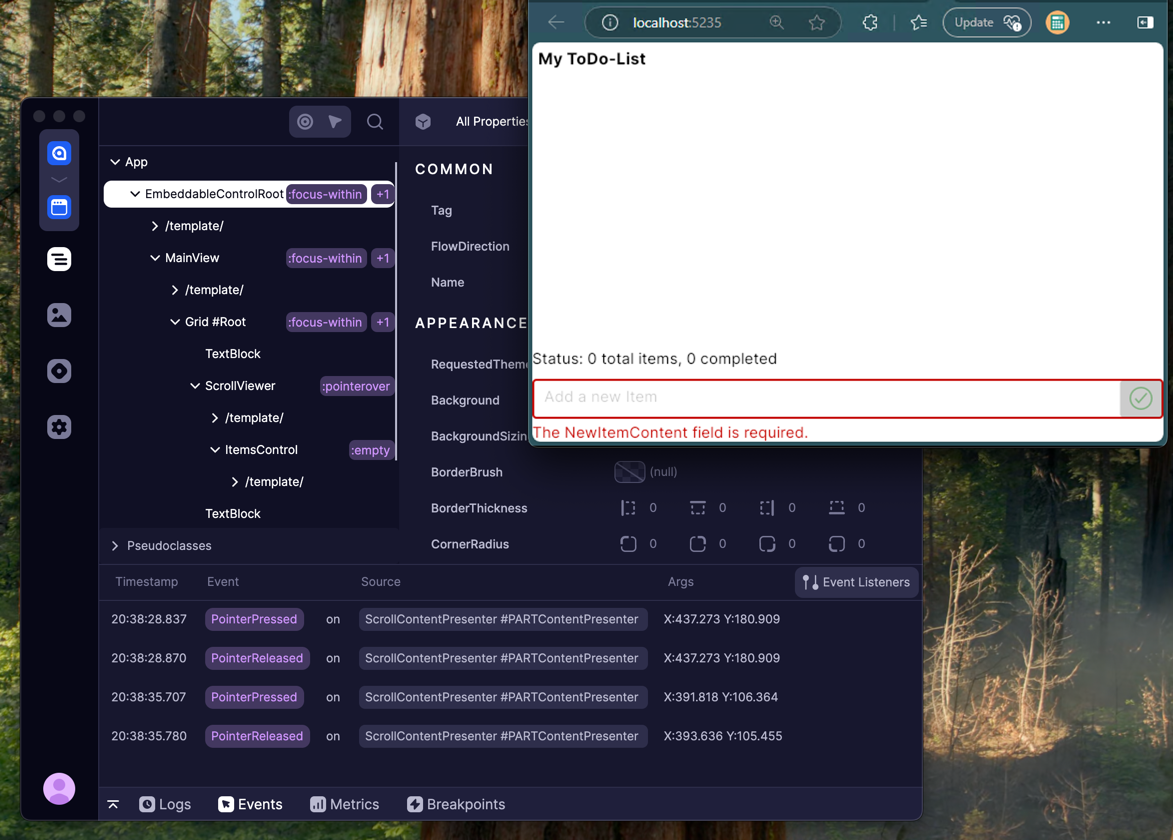
To avoid conflicts with Chrome Developer Tools, Avalonia tools shortcut can be redefined from F12 to a custom one. See DeveloperToolsOptions.Gesture for details.
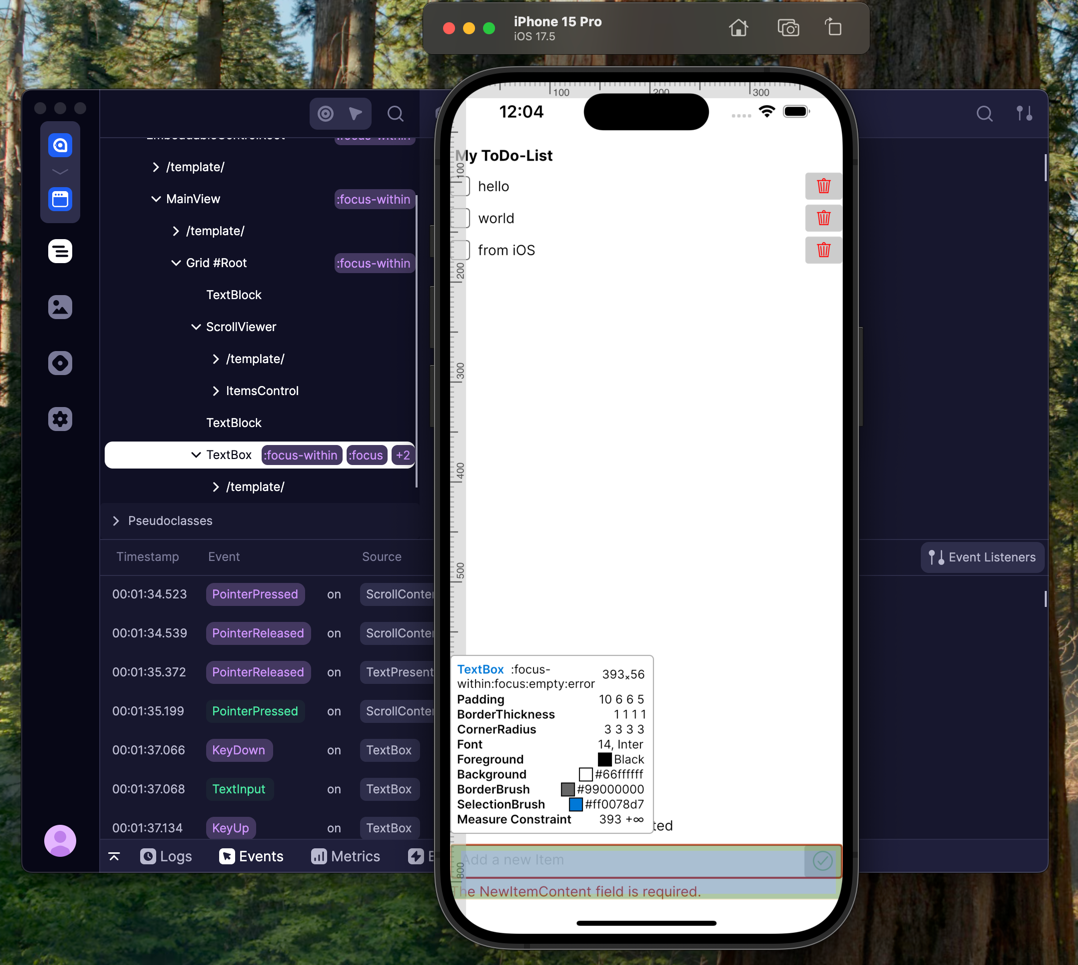
Attaching iOS application
- Follow Getting Started for the initial setup.
- Run the Developer Tools application.
avdtdotnet tool can be used from the command line. - Run iOS application from your IDE. See Avalonia iOS documentation for details.
- Make sure iOS app is focused, so shortcut can be intercepted. Press F12.
Attaching Android application
-
Follow Getting Started for the initial setup.
cautionAndroid does not allow any HTTP traffic by default.
-
Create
Resources/xml/network_security_config.xmlfile:<?xml version="1.0" encoding="utf-8"?>
<network-security-config>
<domain-config cleartextTrafficPermitted="true">
<domain includeSubdomains="true">10.0.2.2</domain> <!-- Debug address -->
</domain-config>
</network-security-config> -
In the AndroidManifest.xml file, update
<application>xml node:<application android:networkSecurityConfig="@xml/network_security_config"> -
For details, see the [Microsoft blog](https://devblogs.microsoft.com/xamarin/ cleartext-http-android-network-security/).
-
-
Run Developer Tools application.
avdtdotnet tool can be used from the command line. -
Run Android application from your IDE. Please visit Avalonia Android documentation for more details.
-
By default, Android projects are configured to attach to the Developer Tools on startup. See DeveloperToolsOptions.ConnectOnStartup for details.
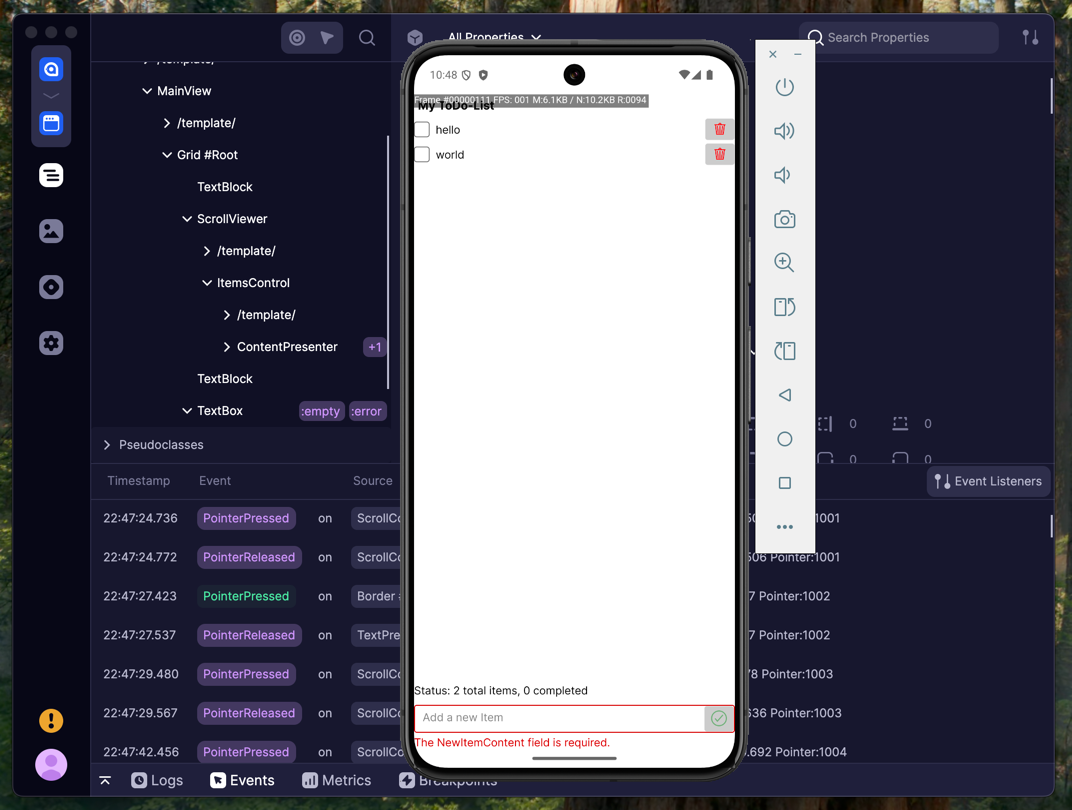
10.0.2.2 is a default IP address on Android instead of localhost. It's mapped by the emulator to target host machine. To override it see DeveloperToolsOptions.Protocol.
Attaching WSL2 application
WSL2 allows debugging and running of Linux applications from the Windows host. It's possible to follow the same instructions and install full Developer Tools process in the WSL2 system, potentially duplicating installation with the Windows version.
But for convenience of keeping single installation it is recommended to attach Linux running application to the Windows running Developer Tools instance.
-
Follow Getting Started instructions for initial setup and NuGet packages installation.
-
Configure WSL2 machine once:
-
(Preferred) Set up WSL2 mirrored mode networking, as specified in Mirrored mode networking documentation. This mode makes Windows
localhostdirectly accessible on WSL instance. No extra configuration and code changes are required. -
(Alternative) Retrieve Windows host IP address following WSL2 documentation: Accessing Windows networking apps from Linux (host IP). Which then can be used in your
AttachDeveloperToolsoptions:
this.AttachDeveloperTools(o =>
{
    o.Protocol = DeveloperToolsProtocol.CreateHttp(IPAddress.Parse("YOUR_LOCAL_NETWORK_HOST_IP"));
}); -
-
Run the Developer Tools instance on your Windows host machine. Typically via
avdtdotnet tool command line. -
Run your Linux app and attach to the Developer Tools via F12.