Focus
Focus refers to the InputElement that is expected to receive keyboard input. Focused controls are typically distinguished with a visual indicator. The most familiar example is a TextBox with a blinking cursor inside, but non-textual controls like Button and Slider also participate in focus.
Understanding how focus works helps you build accessible, keyboard-friendly applications. This page covers the core focus properties, events, pseudoclasses, and the two built-in navigation schemes (tab and directional).
IsFocused and Focusable
IsFocused is a read-only property that tracks whether an InputElement currently holds focus.
The Focusable property enables or disables the ability to focus an InputElement. Elements that cannot be focused can still be interacted with via pointer, so you should ensure a functional keyboard equivalent (such as hotkeys) is available when possible.
<!-- Prevent a button from receiving keyboard focus -->
<Button Content="Click only" Focusable="False" />
Explicit focusing
To explicitly assign focus to any InputElement, call its Focus() method from code. You can optionally specify the NavigationMethod and KeyModifiers to simulate focus triggered by a specific navigation flow. Explicit focusing is often used to set focus on a specific InputElement in a data-entry form when it loads, or to programmatically move focus to the next control once the current input has been satisfied.
// Focus a control when the view loads
myTextBox.Focus(NavigationMethod.Unspecified, KeyModifiers.None);
NavigationMethod | Trigger description |
|---|---|
Tab | Tab key press |
Pointer | Pointer interaction |
Directional | 2D directional (XYFocus) |
Unspecified | Default |
Focus events
InputElement exposes GotFocus and LostFocus events. The GotFocusEventArgs contains the NavigationMethod and KeyModifiers that triggered the focus change, which you can use to adapt your UI behavior accordingly.
myTextBox.GotFocus += (sender, e) =>
{
    if (e.NavigationMethod == NavigationMethod.Tab)
    {
        // Select all text when the user tabs into the field
        myTextBox.SelectAll();
    }
};
Focus pseudoclasses
These pseudoclasses are helpful when you style controls that are Focusable.
| Pseudoclass | Description |
|---|---|
:focus | The control has focus. |
:focus-within | The control has focus or contains a descendant that has focus. |
:focus-visible | The control has focus and should show a visual indicator. |
The FocusAdorner property shows a default focus visual, typically a Border, around a control with :focus-visible. When you use :focus-visible to show a custom visual indicator, set FocusAdorner to null to avoid showing a duplicate indicator.
FocusManager
The FocusManager provides global access to focus functionality, such as retrieving the currently focused element or clearing focus. For additional information, see the FocusManager docs.
// Get the focus manager from a TopLevel
var focusManager = TopLevel.GetTopLevel(myControl)?.FocusManager;

// Get the currently focused element
var focused = focusManager?.GetFocusedElement();
Tab focus navigation
Tab focus navigation occurs when you press the Tab key. Any InputElement with its IsTabStop property set to true participates in tab navigation. The TabIndex property specifies the priority, with lower numeric values being navigated to first. When the TabIndex of multiple controls is equal, the priority is based on Visual Tree traversal order.
The KeyboardNavigation.TabNavigation attached property sets a KeyboardNavigationMode on any InputElement acting as a container, modifying how tab navigation moves through its children.
<!-- Cycle tab focus within the StackPanel -->
<StackPanel KeyboardNavigation.TabNavigation="Cycle">
    <TextBox TabIndex="0" Watermark="First field" />
    <TextBox TabIndex="1" Watermark="Second field" />
    <TextBox TabIndex="2" Watermark="Third field" />
</StackPanel>
KeyboardNavigationMode | Container item traversal |
|---|---|
Continue | Continues past items and into the next container |
Cycle | Cycles through and wraps back within its own items |
Contained | Stops at the beginning or end item |
Once | Container and children receive focus only once as a group |
None | Items will not be focused by tab navigation |
Local | TabIndex is considered for items in the local subtree only |
Directional focus navigation
Focus navigation through XYFocus is a 2D directional scheme that enables spatial navigation from the focused control toward another control in a cardinal direction: left, right, up, or down. By default, XYFocus.NavigationModes is set to allow Gamepad and Remote navigation.
KeyDeviceType | Device |
|---|---|
Disabled | Any key device XY navigation is disabled. |
Keyboard | Keyboard arrow keys can be used. |
Gamepad | Gamepad controller DPad can be used. |
Remote | Remote control can be used. |
Enabled | All devices can be used. |
Gamepad inputs are supported on devices that can natively send these inputs, such as Android. However, Avalonia currently lacks cross-platform Gamepad APIs required for broad out-of-the-box support.
Navigation strategy
When 2D directional navigation is enabled, a disambiguation strategy is used to select the navigation target.
XYFocusNavigationStrategy | Navigation target |
|---|---|
Auto | Inherits strategy from ancestor. Uses Projection if no ancestor specifies. |
Projection | First element encountered when projecting a line in the navigation direction. |
NavigationDirectionDistance | Closest element to the axis of the navigation line. |
RectilinearDistance | Closest element based on the shortest Manhattan distance. |
Explicit navigation
XYFocus allows each control to specify an explicit navigation target when a direction is pressed via XYFocus.Up, XYFocus.Down, XYFocus.Left, and XYFocus.Right. This takes priority over any navigation strategy.
Focus engagement is not yet implemented, so combining directional focus navigation with controls that also handle directional input themselves may have some limitations, especially with visuals.
Example
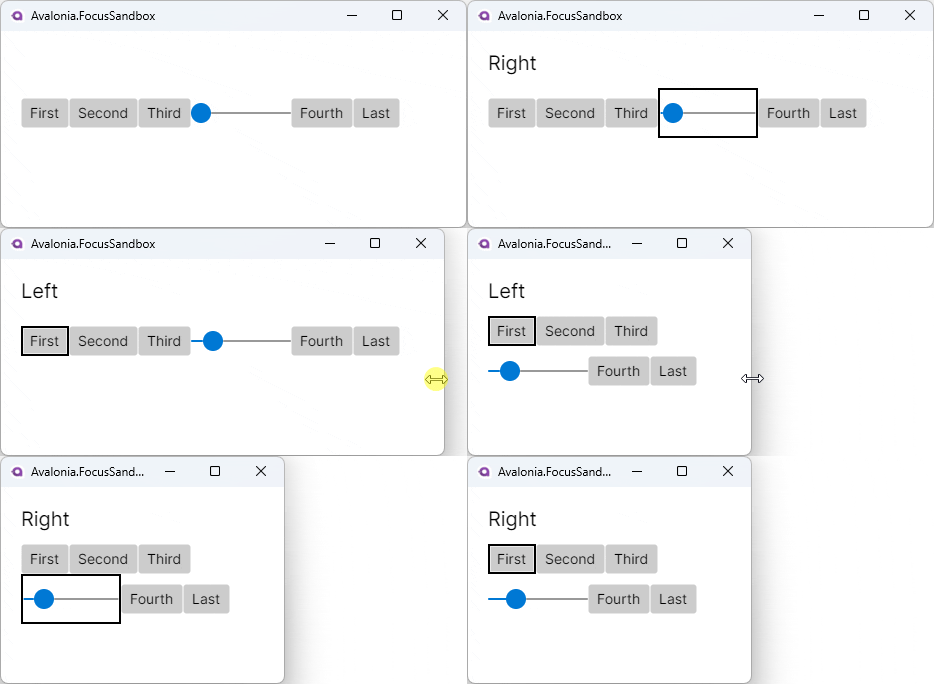
The following example demonstrates how to use directional focus navigation in a WrapPanel. It explicitly allows navigation to wrap from the first to the last element and vice versa.
The Slider provides an example of mixing navigation with control interaction. On Desktop, pressing the Enter key while the Slider is focused begins an interaction where you modify Slider.Value instead of causing navigation. Pressing Enter a second time ends the interaction and resumes directional focus navigation.
<Window
    XYFocus.NavigationModes="Enabled"
    XYFocus.UpNavigationStrategy="Projection"
    XYFocus.DownNavigationStrategy="Projection"
    XYFocus.LeftNavigationStrategy="Projection"
    XYFocus.RightNavigationStrategy="Projection">
    <Grid>
        <WrapPanel>
            <Button x:Name="first"
                Content="First"
                XYFocus.Left="{Binding #last}" />
            <Button Content="Second" />
            <Button Content="Third" />

            <Slider Width="100" Maximum="100" />

            <Button Content="Fourth" />
            <Button x:Name="last"
                Content="Last"
                XYFocus.Right="{Binding #first}" />
        </WrapPanel>
    </Grid>
</Window>
See also
- Keyboard and hotkeys: Key bindings and keyboard shortcuts.
- FocusManager: Global focus management service.
- Pointer events: Pointer device events.
- Routed events: How events travel through the element tree.