Creating mouse and keyboard shortcuts
Avalonia lets you wire up keyboard shortcuts and mouse actions so your users can interact with controls without reaching for a toolbar or menu. This page walks you through the most common patterns: binding a key to a command with KeyBindings, handling double-click through the DoubleTapped event, and adding a right-click context menu.
Key bindings
You can attach one or more KeyBinding elements to any control's KeyBindings collection. Each KeyBinding maps a Gesture (a key, optionally combined with modifiers) to a command on your view model.
<ListBox.KeyBindings>
    <KeyBinding Command="{Binding PrintItem}" Gesture="Enter" />
    <KeyBinding Command="{Binding DeleteItem}" Gesture="Delete" />
    <KeyBinding Command="{Binding SelectAll}" Gesture="Ctrl+A" />
</ListBox.KeyBindings>
The Gesture string is parsed as a KeyGesture. You can use modifier shortcuts such as Ctrl, Shift, Alt, and Cmd. For a full list of supported keys and modifiers, see the Keyboard and hotkeys reference.
KeyBinding only fires when the control (or one of its children) has keyboard focus. If you need an application-wide shortcut that works regardless of focus, use HotKey on a MenuItem or another ICommandSource instead.
Handling double-click
Avalonia does not provide a MouseBinding equivalent. To respond to a double-click, handle the DoubleTapped event in your code-behind and forward the action to your view model:
private void ListBox_DoubleTapped(object? sender, Avalonia.Input.TappedEventArgs e)
{
    if (DataContext is MainViewModel vm)
    {
        vm.PrintItem.Execute(null);
    }
}
Attach the handler in XAML with the DoubleTapped attribute:
<ListBox DoubleTapped="ListBox_DoubleTapped"
         ItemsSource="{Binding OperatingSystems}"
         SelectedItem="{Binding OS}" />
Adding a context menu
You can attach a ContextMenu to any control. The menu appears when the user right-clicks (or long-presses on touch devices). Bind each MenuItem to a command on your view model:
<TextBlock Text="{Binding Result}">
    <TextBlock.ContextMenu>
        <ContextMenu>
            <MenuItem Command="{Binding Clear}" Header="Clear" />
        </ContextMenu>
    </TextBlock.ContextMenu>
</TextBlock>
Complete example
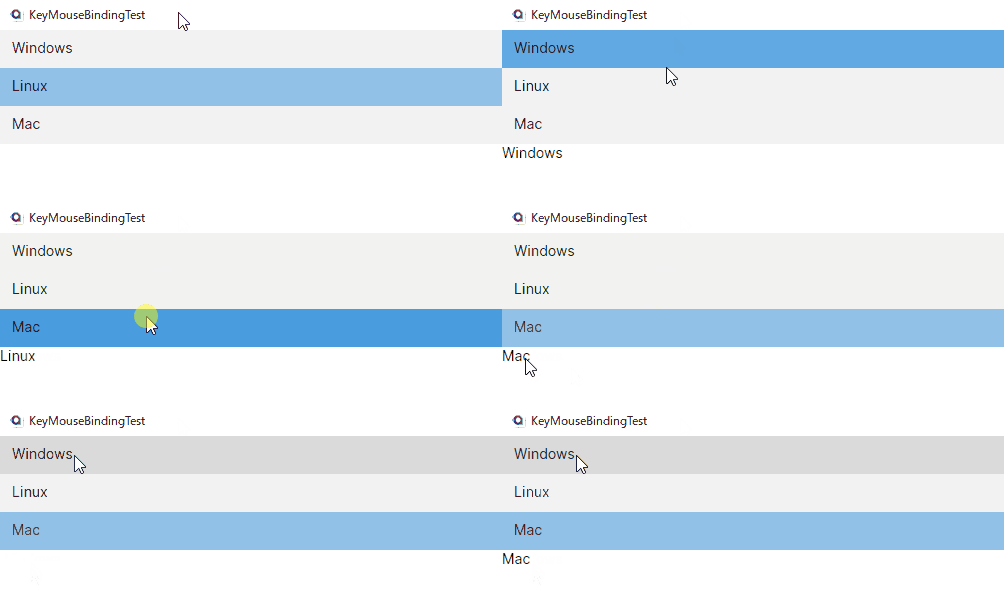
The following example combines all three techniques in a single view. A ListBox displays a list of operating systems. Pressing Enter or double-clicking an item prints it to a TextBlock, and right-clicking the TextBlock clears the result.
- XAML
- Code-behind
- ViewModel
<UserControl ..>
    <StackPanel>
        <ListBox
            DoubleTapped="ListBox_DoubleTapped"
            ItemsSource="{Binding OperatingSystems}"
            SelectedItem="{Binding OS}">
            <ListBox.KeyBindings>
                <!--  Enter  -->
                <KeyBinding Command="{Binding PrintItem}" Gesture="Enter" />
                <!--
                    MouseBindings are not supported.
                    Instead, handle it in the view's code-behind. (DoubleTapped event)
                -->
            </ListBox.KeyBindings>
        </ListBox>
        <TextBlock Text="{Binding Result}">
            <TextBlock.ContextMenu>
                <ContextMenu>
                    <!--  Right Click  -->
                    <MenuItem Command="{Binding Clear}" Header="Clear" />
                </ContextMenu>
            </TextBlock.ContextMenu>
        </TextBlock>
    </StackPanel>
</UserControl>
public partial class MainView : UserControl
{
    public MainView()
    {
        InitializeComponent();
    }

    private void ListBox_DoubleTapped(object? sender, Avalonia.Input.TappedEventArgs e)
    {
        if (DataContext is MainViewModel vm)
        {
            vm.PrintItem.Execute(null);
        }
    }
}
public class MainViewModel : ViewModelBase
{
    public List<string> OperatingSystems =>
    [
        "Windows",
        "Linux",
        "Mac",
    ];
    public string OS { get; set; } = string.Empty;

    [Reactive]
    public string Result { get; set; } = string.Empty;

    public ICommand PrintItem { get; }
    public ICommand Clear { get; }

    public MainViewModel()
    {
        PrintItem = ReactiveCommand.Create(() => Result = OS);
        Clear = ReactiveCommand.Create(() => Result = string.Empty);
    }
}
Platform-specific notes
| Platform | Behavior |
|---|---|
| macOS | Use Cmd instead of Ctrl for platform-idiomatic shortcuts (for example, Cmd+S for save). You can bind both Ctrl and Cmd variants to the same command to cover all platforms. |
| Linux / X11 | Context menus open on right-click by default. Long-press context menus are not available because X11 does not provide touch hold events. |
| Mobile (Android / iOS) | KeyBinding has no effect when there is no physical keyboard attached. Use gesture recognizers and ContextMenu (activated by long-press) for touch-first interactions. |
| Browser (WASM) | Most key gestures work, but certain browser-reserved shortcuts (such as Ctrl+T or Ctrl+W) cannot be intercepted by your application. |
See also
- Keyboard and hotkeys: key bindings and hotkey configuration.
- Commanding: the
ICommandinterface and command binding. - Gestures: tap, double-tap, and multi-pointer gesture recognizers.
- Adding interactivity: events and commands overview.