Install Avalonia
Install the .NET SDK and Avalonia project templates so you can create Avalonia applications from the command line or your IDE.
Prerequisites
Before you install Avalonia, make sure you have:
- .NET 8.0 or later (as of October 2025)
If you do not have .NET installed, download it from the .NET website and follow the installation instructions for your operating system.
Verify your installation by running:
dotnet --version
The output should show version 8.0 or higher. If the command is not recognized, make sure the .NET SDK directory is on your system PATH.
You can have several .NET SDK versions installed. Avalonia requires .NET 8.0 or later, but your project can still target earlier frameworks through multi-targeting if needed. Run dotnet --list-sdks to see every SDK version on your machine.
Install the Avalonia templates
Avalonia uses standard .NET templates to create new projects. Install them by running:
dotnet new install Avalonia.Templates
You should see output confirming the templates were installed:
Template Name                                 Short Name                  Language    Tags
--------------------------------------------  --------------------------  ----------  ---------------------------------------------------------
Avalonia .NET App                             avalonia.app                [C#],F#     Desktop/Xaml/Avalonia/Windows/Linux/macOS
Avalonia .NET MVVM App                        avalonia.mvvm               [C#],F#     Desktop/Xaml/Avalonia/Windows/Linux/macOS
Avalonia Cross Platform Application           avalonia.xplat              [C#],F#     Desktop/Xaml/Avalonia/Browser/Mobile
Avalonia Resource Dictionary                  avalonia.resource                       Desktop/Xaml/Avalonia/Windows/Linux/macOS
Avalonia Styles                               avalonia.styles                         Desktop/Xaml/Avalonia/Windows/Linux/macOS
Avalonia TemplatedControl                     avalonia.templatedcontrol   [C#],F#     Desktop/Xaml/Avalonia/Windows/Linux/macOS
Avalonia UserControl                          avalonia.usercontrol        [C#],F#     Desktop/Xaml/Avalonia/Windows/Linux/macOS
Avalonia Window                               avalonia.window             [C#],F#     Desktop/Xaml/Avalonia/Windows/Linux/macOS
You can check which templates are already installed by running:
dotnet new list
Look for entries with "Avalonia" in the name.
If you are using Visual Studio, the Avalonia for Visual Studio extension automatically includes these templates. You only need to run dotnet new install if you use a different IDE or the command line.
Update existing templates
If you installed the templates previously, you can update them to the latest version by running:
dotnet new update
This updates all installed template packages, including Avalonia.Templates. To install a specific template version (for example, to match a particular Avalonia release), specify the version explicitly.
dotnet new install [email protected]
Uninstall templates
If you need to remove the Avalonia templates and start fresh, run:
dotnet new uninstall Avalonia.Templates
Then reinstall them with the dotnet new install command shown above.
Verify the installation
Create a quick test project to confirm everything is working:
dotnet new avalonia.app -o TestApp
cd TestApp
dotnet build
If the build succeeds, your installation is ready. You can delete the TestApp folder when you are done.
Common issues
dotnet newdoes not list the Avalonia templates. Make sure you randotnet new install Avalonia.Templatesand that the command completed without errors. Restart your terminal and try again.- Build errors referencing missing SDKs. Confirm that
dotnet --versionreports 8.0 or later. If you have an older SDK set as the default by aglobal.jsonfile in a parent directory, either remove that file or update it to require a compatible SDK version. - Permission errors on macOS or Linux. If the install command fails with a permission error, make sure you are not running it with
sudo. The .NET template engine installs templates into your user profile directory and does not require elevated privileges.
Installing Avalonia in an existing .NET project
If you need to install Avalonia in an existing .NET project (e.g., a class library), use the NuGet package management tab in your preferred IDE.
- Rider
- Visual Studio
- VS Code
- In the solution panel, select your .NET project.
- Click Tools → NuGet → Manage NuGet Packages.
- Search for "Avalonia" in the search bar.
- Select Avalonia.
- Select the preferred version.
- Click the name of your project at the bottom of the panel to install Avalonia to that project.

- In the solution explorer, select your .NET project.
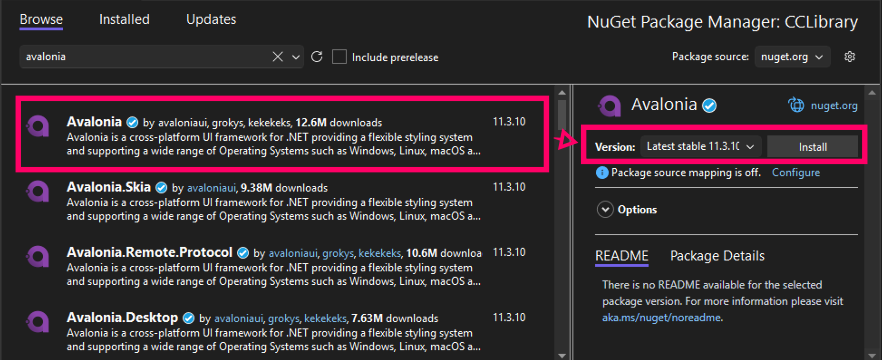
- Click Project → Manage NuGet Packages.
- Go to the Browse tab. Search for "Avalonia".
- Select Avalonia.
- Select the preferred version.
- Click Install.
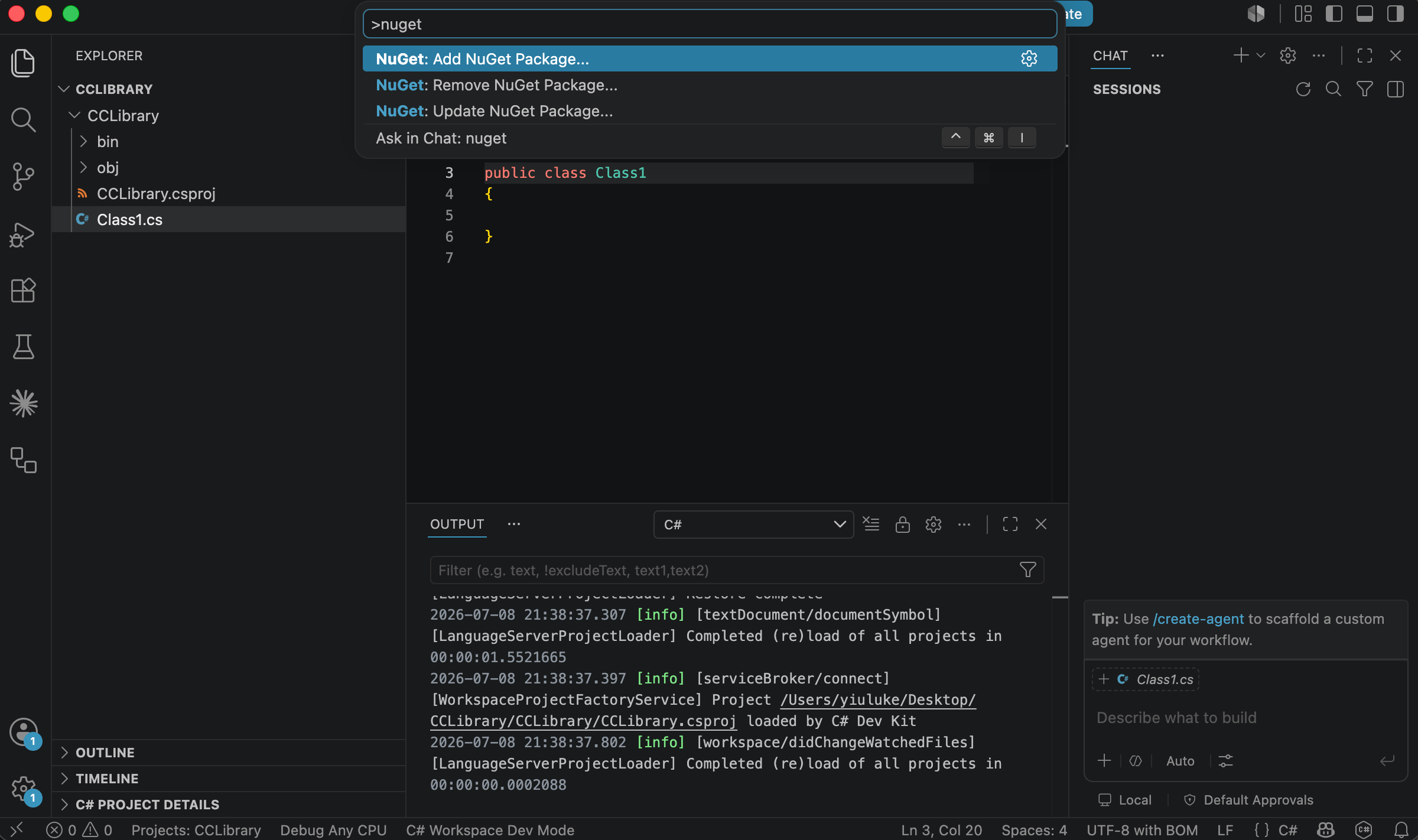
- Bring up the command palette using Ctrl ⇧ P on Windows, or Cmd ⇧ P on macOS.
- Search for and select the command NuGet: Add NuGet Package.
- Input the search term "Avalonia". Confirm the input.
- Select the package Avalonia from the search results.
- Select the desired package version to install it.