ComboBox
ComboBox presents a selected item in a box, with a dropdown button that displays a list of options. This page provides general reference for the control. For practical guidance on using ComboBox, see How to: Work with ComboBox.
Useful properties
You will probably use these properties most often:
| Property | Type | Description |
|---|---|---|
ItemsSource | IEnumerable? | The bound collection that is used as the data source for the control. Inherited from ItemsControl. |
SelectedIndex | int | The index (zero-based) of the selected item. |
SelectedItem | object? | The selected item itself. |
SelectedValue | object? | The value of the selected item, determined by SelectedValueBinding. |
IsEditable | bool | Enables text editing, allowing you to type into the combo box. |
Text | string? | Gets or sets the text value when IsEditable is true. |
PlaceholderText | string? | Placeholder text shown when no item is selected. |
AutoScrollToSelectedItem | bool | Indicates whether to automatically scroll to newly selected items. |
IsDropDownOpen | bool | Indicates whether the dropdown is currently open. |
MaxDropDownHeight | double | The maximum height for the dropdown list. This is the actual height of the list part, not the number of items that show. |
ItemsPanel | ITemplate<Panel> | The container panel to place items in. By default, this is a StackPanel. See Custom panel for how to customize the ItemsPanel. |
By default, the width and height of the combo box scale to fit the selected item. If you need a box with a fixed size, you can also set Width and Height explicitly.
Tips
- Always set
SelectedIndexorSelectedItemto an initial value if you want the control to display a selection on load. If neither is set, and you have not specifiedPlaceholderText, the control appears blank. - Use
PlaceholderTextto give your users a hint when nothing is selected yet. (e.g., "Select an option...") - When you bind
ItemsSourceto a collection of complex objects, provide anItemTemplateso the control knows how to render each item. Without a template, the control callsToString()on each object. - If you need to clear the selection programmatically, set
SelectedIndexto-1orSelectedItemtonull. - The
SelectionChangedevent fires whenever the selected item changes. Use this to run side-effect logic outside the view model. - You can compose, bind or template the items in the list. To review data templates, see Introduction to data templates.
Examples
Basic example
A basic list of text items. These are defined in XAML, meaning they cannot change at runtime. SelectedIndex pre-selects an item from the list as the default selection, using its list position. The dropdown menu is fixed at a limited height and becomes scrollable as a result.
- XAML
<StackPanel xmlns="https://github.com/avaloniaui"
            Margin="20">
  <ComboBox SelectedIndex="0" MaxDropDownHeight="100">
    <ComboBoxItem>Text Item 1</ComboBoxItem>
    <ComboBoxItem>Text Item 2</ComboBoxItem>
    <ComboBoxItem>Text Item 3</ComboBoxItem>
    <ComboBoxItem>Text Item 4</ComboBoxItem>
    <ComboBoxItem>Text Item 5</ComboBoxItem>
    <ComboBoxItem>Text Item 6</ComboBoxItem>
    <ComboBoxItem>Text Item 7</ComboBoxItem>
    <ComboBoxItem>Text Item 8</ComboBoxItem>
    <ComboBoxItem>Text Item 9</ComboBoxItem>
  </ComboBox>
</StackPanel>
Composed view
This combo box has a dropdown list that displays text overlaid on colored discs.
- XAML
<StackPanel xmlns="https://github.com/avaloniaui"
            Margin="20">
  <ComboBox SelectedIndex="0">
    <ComboBoxItem>
      <Panel>
        <Ellipse Width="50" Height="50" Fill="Red"/>
        <TextBlock VerticalAlignment="Center"
                   HorizontalAlignment="Center">Red</TextBlock>
      </Panel>
    </ComboBoxItem>
    <ComboBoxItem>
        <Panel>
          <Ellipse Width="50" Height="50" Fill="Orange"/>
          <TextBlock VerticalAlignment="Center"
                       HorizontalAlignment="Center">Amber</TextBlock>
        </Panel>
    </ComboBoxItem>
    <ComboBoxItem>
      <Panel>
        <Ellipse Width="50" Height="50" Fill="Green"/>
        <TextBlock VerticalAlignment="Center"
                   HorizontalAlignment="Center">Green</TextBlock>
        </Panel>
    </ComboBoxItem>
  </ComboBox>
</StackPanel>
Binding to a data template
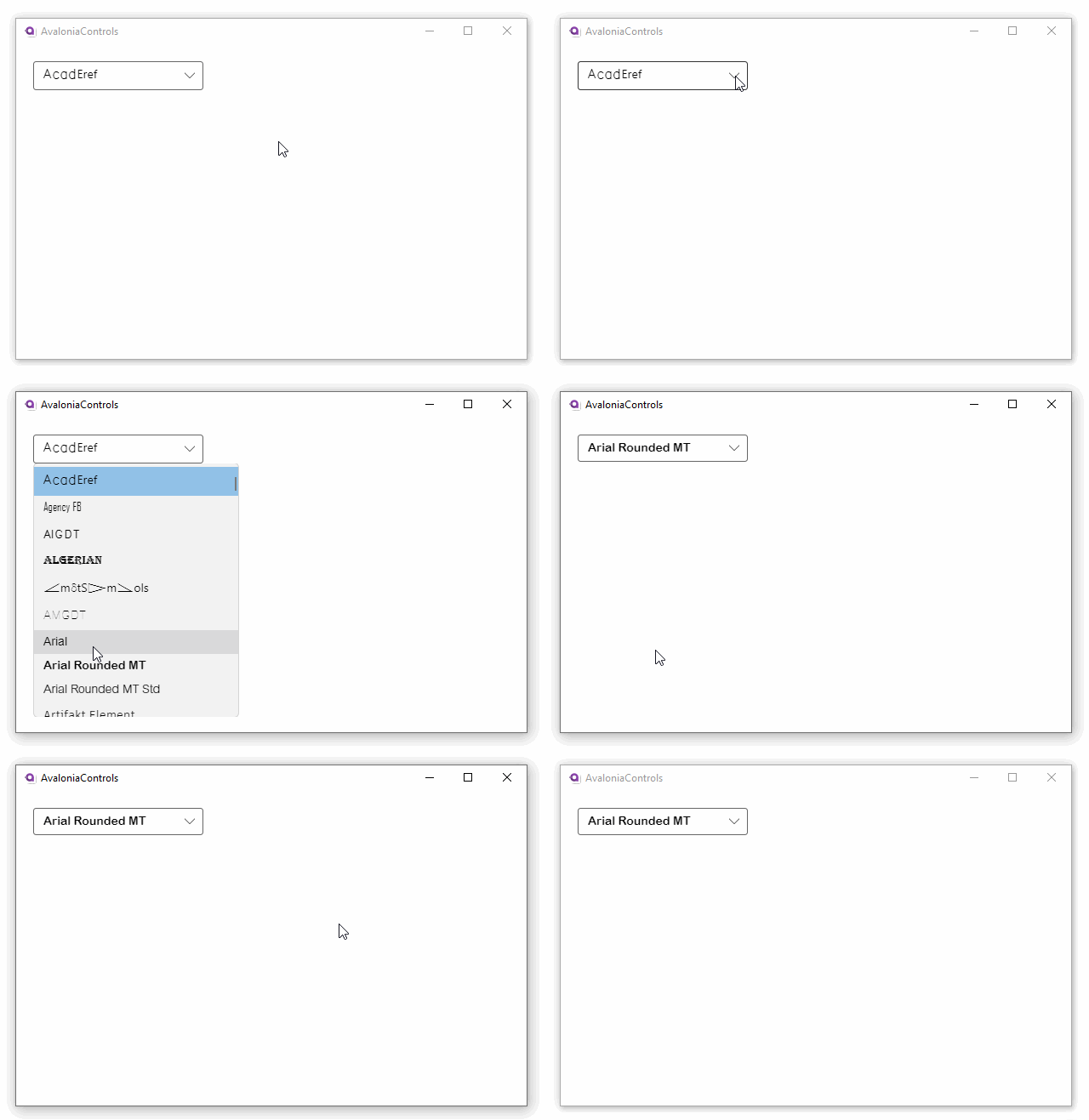
This example binds the items in the combo box using a data template. The C# code-behind loads the installed font family names and binds them to the ItemsSource property.
- MainWindow.axaml
- MainWindow.axaml.cs
- Preview
<StackPanel Margin="20">
    <ComboBox x:Name="fontComboBox"
              SelectedIndex="0"
              Width="200" MaxDropDownHeight="300"
              ItemsSource="{Binding FontFamilies}"
              SelectedValue="{Binding SelectedFont}">
        <ComboBox.ItemTemplate>
            <DataTemplate x:DataType="FontFamily">
                <TextBlock Text="{Binding Name}" FontFamily="{Binding}" />
            </DataTemplate>
        </ComboBox.ItemTemplate>
    </ComboBox>
</StackPanel>
using Avalonia.Controls;
using Avalonia.Media;
using Avalonia.Media.Fonts;
using System.Collections.Generic;
using System.Linq;

namespace TmpAvaloniaApp;

public partial class MainWindow : Window

{
    public MainWindow()
    {
        InitializeComponent();
        IFontCollection fontCollection = FontManager.Current.SystemFonts;
        FontFamilies = new List<FontFamily>(fontCollection).OrderBy(x=>x.Name).ToList();
        DataContext = this;
    }

    public FontFamily? SelectedFont { get; set; }

    public List<FontFamily> FontFamilies { get; set; }

}
Binding to a view model
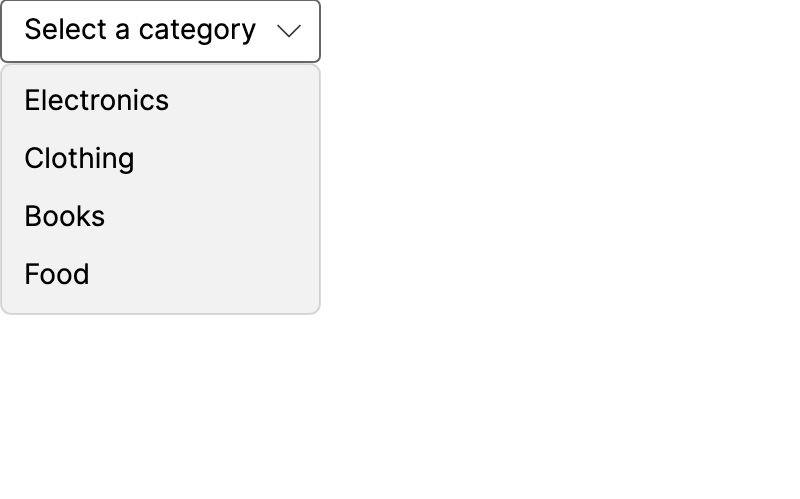
You can also bind the combo box's list items in a view model. In this example, the items are placed in an ObservableCollection in the main window view model, which binds both ItemsSource and SelectedItem.
- MainWindow.axaml
- MainWindowViewModel.cs
- Preview
<ComboBox ItemsSource="{Binding Categories}"
          SelectedItem="{Binding SelectedCategory}"
          PlaceholderText="Select a category" />
using System.Collections.ObjectModel;
using CommunityToolkit.Mvvm.ComponentModel;

namespace ComboBoxTest.ViewModels;

public partial class MainWindowViewModel : ViewModelBase
{
    public ObservableCollection<string> Categories { get; } = new()
    {
        "Electronics", "Clothing", "Books", "Food"
    };

    [ObservableProperty]
    private string? _selectedCategory;
}
Editable combo box
ComboBox has the IsEditable property. If set to true, the box allows text input.
Keyboard input in the box, if it matches a list item, sets the SelectedItem. Use this to give users the option to select an item without browsing the dropdown list.
- MainWindow.axaml
- MainWindowViewModel.cs
- Preview
<StackPanel>
    <!-- You must bind SelectedItem in XAML to persist the selection.
         Otherwise, the selection just shows in the box but does nothing. -->
    <ComboBox ItemsSource="{Binding Countries}"
              SelectedItem="{Binding SelectedCountry}"
              IsEditable="True"
              PlaceholderText="Input a country..." />

    <TextBlock Text="{Binding SelectedCountry, StringFormat='You have selected {0}'}" />
</StackPanel>
using System.Collections.ObjectModel;
using CommunityToolkit.Mvvm.ComponentModel;

namespace ComboBoxTest.ViewModels;

public partial class MainWindowViewModel : ViewModelBase
{
    public ObservableCollection<string> Countries { get; } = new()
    {
        "Australia", "Canada", "Japan", "Singapore", "UK", "USA"
    };

    [ObservableProperty]
    private string? _selectedCountry;
}

IsEditable="True" does not make the ComboBox searchable, nor does it filter the dropdown list while the user types.
For type-to-search functionality, use AutoCompleteBox instead. You can try changing ComboBox in the example above to AutoCompleteBox to see the difference.
Complex data objects
When items are complex objects with multiple components (e.g., a user profile consisting of name, job, email, etc.), use TextSearch.TextBinding to specify which property the editable text should match against.
<ComboBox IsEditable="True"
          ItemsSource="{Binding People}"
          SelectedItem="{Binding SelectedPerson}"
          TextSearch.TextBinding="{Binding FullName}">
    <ComboBox.ItemTemplate>
        <DataTemplate>
            <TextBlock Text="{Binding FullName}" />
        </DataTemplate>
    </ComboBox.ItemTemplate>
</ComboBox>