Adding a control
The first step for our temperature converter app is to add a control. By “controls”, we mean UI elements that allow interaction with your app. Some examples of controls are buttons, sliders, checkboxes or menus.
For more information on controls, see the Controls reference page.
Inserting a button
Let’s try replacing the text in the app with a button.
- Stop the app if it is still running.
- In the file MainWindow.axaml, locate this line:
<TextBlock Text="{Binding Greeting}" HorizontalAlignment="Center" VerticalAlignment="Center"/>
- Replace the entire line with this:
<Button>Calculate</Button>
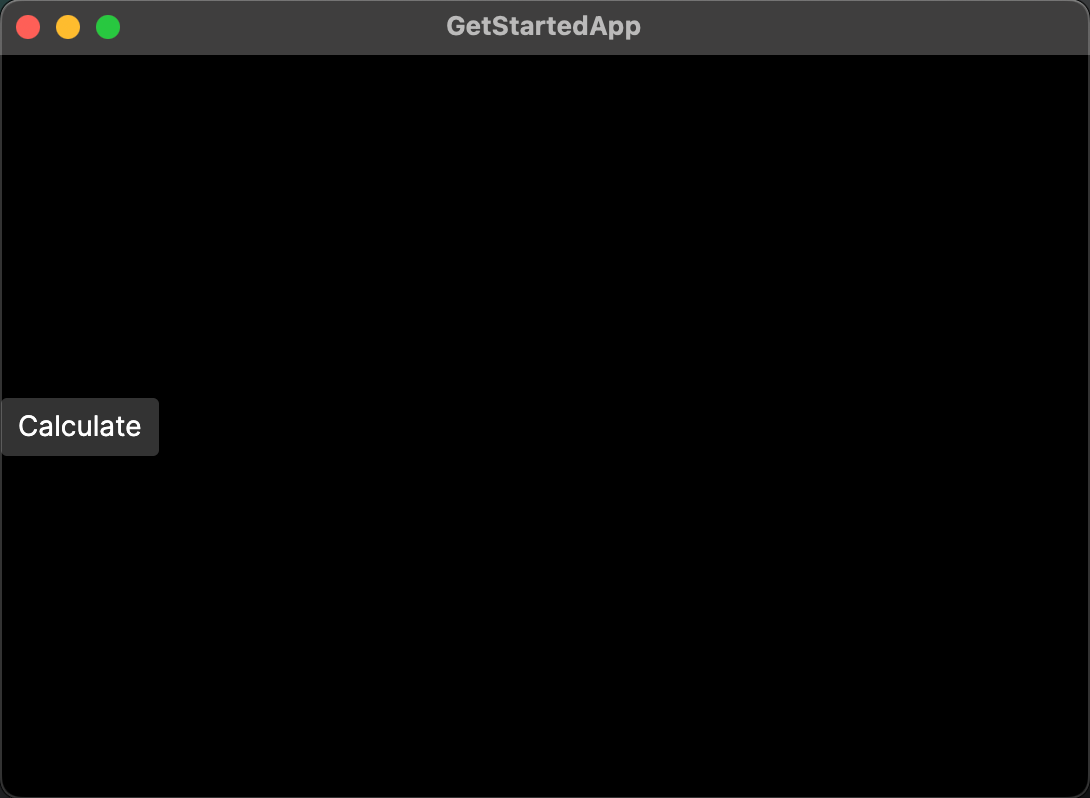
- Run the app or check the previewer. You should now see a Calculate button in the app window.
- You can try hovering over or clicking the button to see how its appearance changes.

Setting the button's attributes
Controls in Avalonia use XML attributes to specify their presentation and behavior.
Your Calculate button is currently aligned against the left edge of the window. This is because the default value of the HorizontalAlignment attribute is Left. Let’s change this attribute to put the button in the center instead.
- In the file MainWindow.axaml, go to the line you added for the button:
<Button>Calculate</Button>
- Add the
HorizontalAlignmentattribute to the<Button>tag. Set it toCenter.
<Button HorizontalAlignment="Center">Calculate</Button>
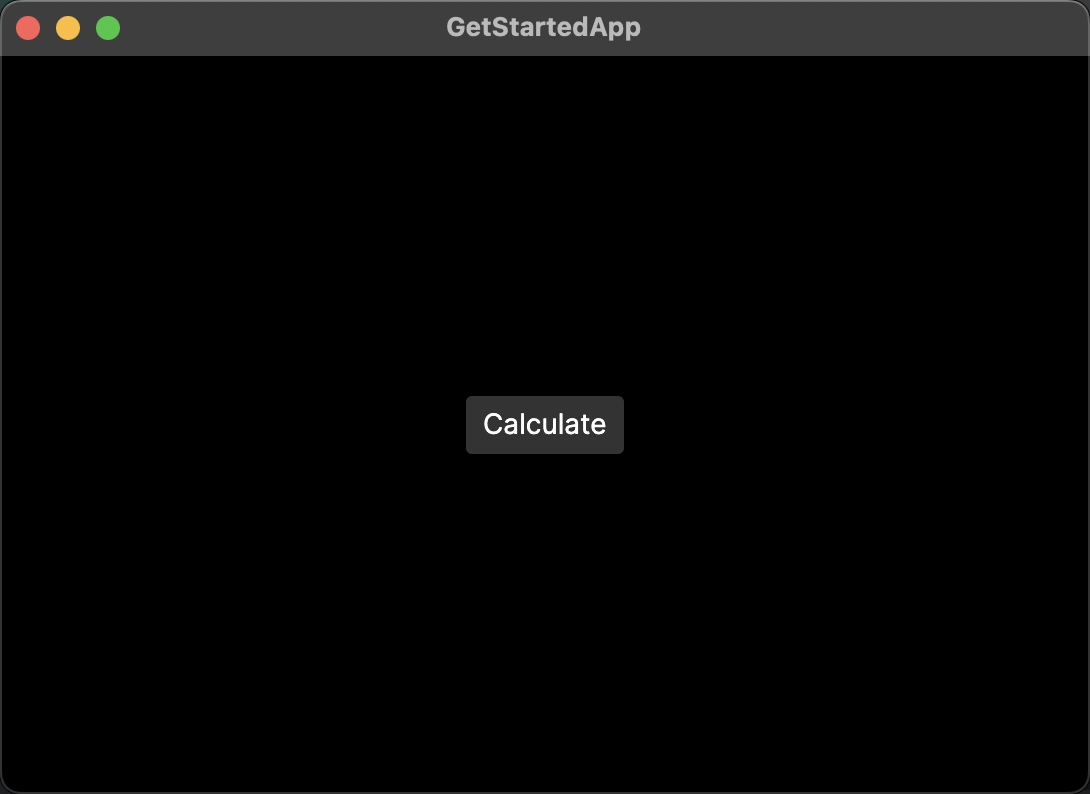
- Run the app or check the previewer. You should see that the Calculate button moves to the center of the window.

On the next page of this tutorial, you will learn how to add multiple elements to your app using layout controls.