Mobile and Browser
Prerequisites
Before adding mobile or browser targets, make sure your project already runs on XPF for Desktop and that the XPF SDK is configured correctly. See Getting Started if you have not done this yet.
The CalculatorDemo repository contains a working example of XPF on all platforms. Ask the support team for access if needed.
You also need to prepare your development machine for each target platform. These steps are shared with all .NET mobile and browser projects:
- Setting up an Android dev environment
- Setting up an iOS dev environment
- Setting up a Browser dev environment
Multi-targeting
Mobile and browser support in .NET is powered by platform-specific workloads and target frameworks. Desktop applications normally use net8.0 or net8.0-windows, which also works on Linux and macOS through the XPF SDK compatibility layer.
To support Android, iOS, or Browser, your project needs the corresponding target frameworks: net8.0-android, net8.0-ios, and net8.0-browser.
If you are familiar with Avalonia's cross-platform templates, you may know that Avalonia recommends creating separate projects per target. This is not recommended for XPF projects. WPF's embedded resource system assumes the executable project is the main project with all resources, and splitting into separate projects can break this.
Instead, use a single multi-targeted project by changing your .csproj:
-        <TargetFramework>net8.0-windows</TargetFramework>
+        <TargetFrameworks>net8.0;net8.0-ios;net8.0-android;net8.0-browser</TargetFrameworks>
Where net8.0 is reused for all desktop platforms.
Additionally, enable multi-targeting support in the XPF SDK:
+ <XpfSingleProject>true</XpfSingleProject>
Add net8.0-android, net8.0-ios, and net8.0-browser target frameworks only on the executable project. Do not add them to shared library projects. In particular, net8.0-browser is not supported on non-executable projects and will cause build errors such as "Program does not contain a static 'Main' method suitable for an entry point."
Library projects should target net8.0. You can use the XPF SDK on library projects if needed. If a library needs access to native mobile APIs, you can add net8.0-android or net8.0-ios, but not net8.0-browser.
Defining an entry point
Desktop WPF applications start with a Main method, but mobile and browser platforms have different entry point mechanisms. Android requires a root Activity, iOS requires an AppDelegate, and browser applications are launched by the web page itself.
To handle this, define a shared entry point in your Application class that each platform can call:
    public partial class App : Application
    {
+        /// Shared App entry point.
+        public static int Start()
+        {
+            var app = new App();
+            app.InitializeComponent();
+
+            // Note, this method returns early on Mobile and Browser.
+            return app.Run();
+        }
    }
Platform-specific folders
The final step before building is to define platform-specific folders containing the entry point for each target. After this step, your project structure should look like this:
You can download pre-created platform folders from the SingleProjectPlatforms repository.
Each platform entry point calls the App.Start() method defined in the previous step.
Building
.NET CLI
Build all platforms at once:
dotnet build
Build for a specific platform:
dotnet build -f net8.0-android
Run the browser target:
dotnet run -f net8.0-browser
.NET does not officially support running Android or iOS apps from the CLI directly. Use an IDE for these targets.
Visual Studio
By default, Visual Studio targets the desktop framework (net8.0). To select a different platform, use the target framework dropdown:
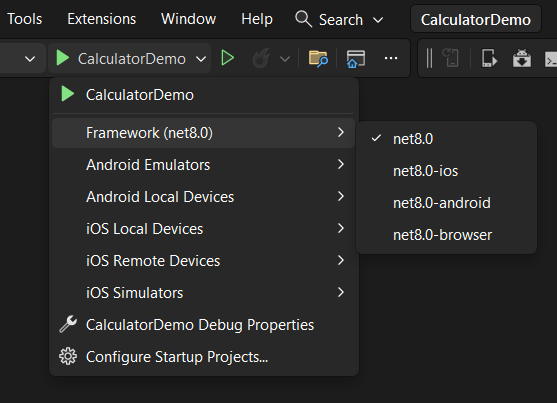
When Android is selected, Visual Studio shows a selector for emulators or connected devices:

If no emulators appear, verify that:
- The Android SDK is installed (install it from the Visual Studio Installer under "Individual Components")
- At least one Android emulator is configured (open Tools > Android > Android Device Manager to create one)
- Both Visual Studio and the XPF SDK are up to date
JetBrains Rider
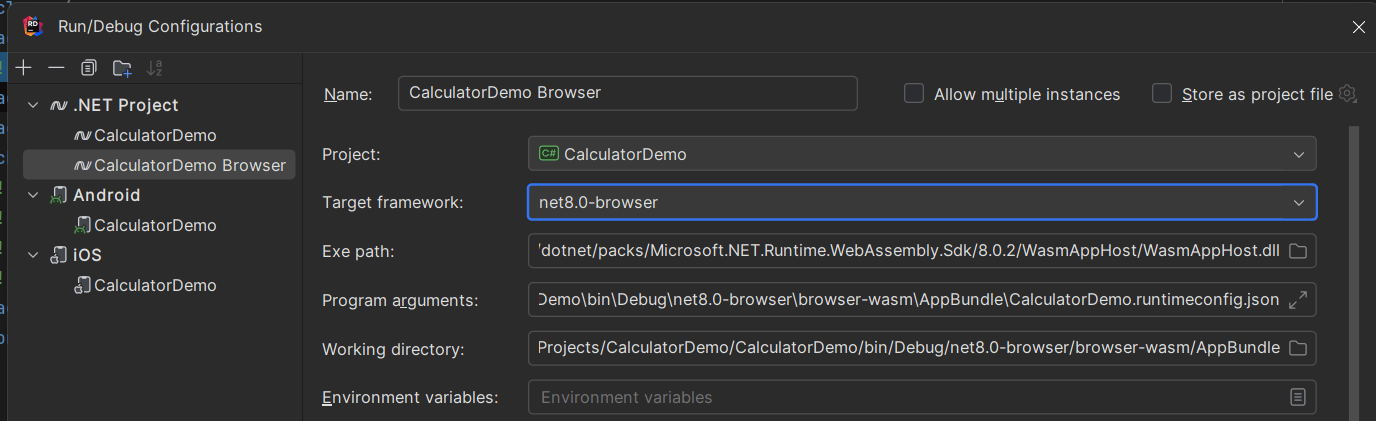
Rider works similarly to Visual Studio. Select your target framework from the run configuration dropdown:

The Browser target is not shown by default. To add it, click Edit Configurations in the dropdown and add a new ".NET Project" configuration, selecting the correct target framework. Rider fills in the remaining fields automatically.
VS Code
VS Code works with the C# Dev Kit and .NET MAUI extensions for mobile targets.
Apple does not allow iOS simulators or connected iOS devices on non-macOS machines. Use macOS for Apple mobile targets, or experiment with Visual Studio's macOS pairing feature.
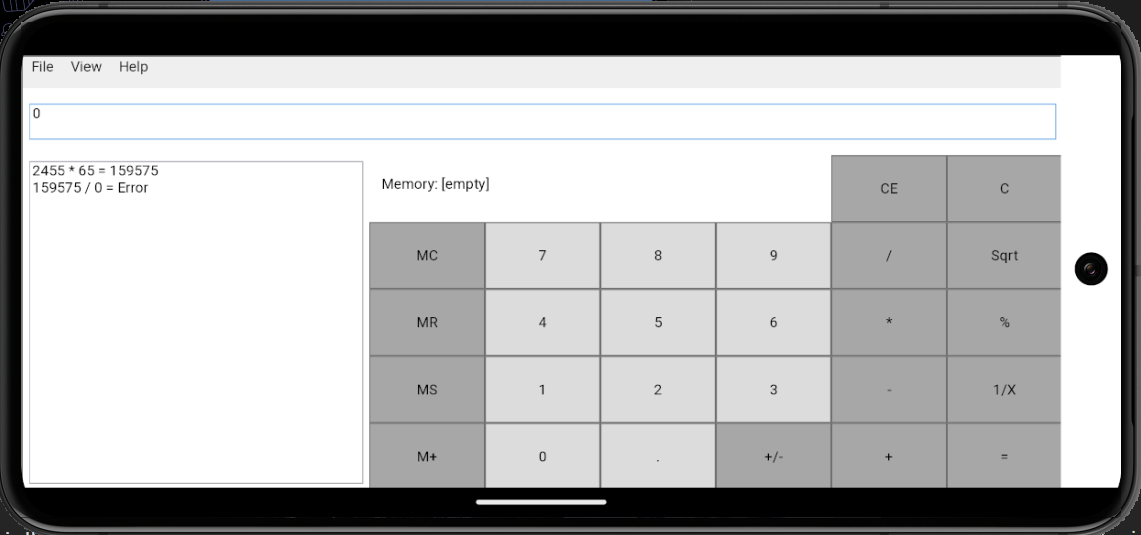
Example: WPF Calculator Demo on Android
Publishing
Use the .NET CLI for publishing:
# Outputs an APK in /bin/Release/net8.0-android/publish/
dotnet publish -f net8.0-android

# Outputs an IPA in /bin/Release/net8.0-ios/publish/
dotnet publish -f net8.0-ios

# Outputs an app bundle in /bin/Release/net8.0-browser/browser-wasm/AppBundle/
dotnet publish -f net8.0-browser
Publishing in Release configuration has known issues with Mobile and Browser projects due to trimming and AOT compilation. Test your published output thoroughly.
Known limitations
Browser and mobile platforms have inherent constraints compared to desktop. XPF provides compatibility layers for some of these, but others require changes in your application code.
Windowing
XPF supports the Window class on mobile and browser targets through a virtual desktop embedded in the platform's single view (the mobile app view or web page content). No extra code is needed to enable this.
Current limitations of virtual windows:
- Resizing and dragging are not yet supported
- Window decorations are not rendered
- Owned windows are not yet supported (but
ShowDialogworks)
Maximize your main window so it fills the full screen on mobile and browser:
public MainWindow()
{
    InitializeComponent();

    if (OperatingSystem.IsBrowser() || OperatingSystem.IsAndroid() || OperatingSystem.IsIOS())
    {
        WindowState = WindowState.Maximized;
    }
}
DispatcherFrame
DispatcherFrame and related Dispatcher APIs are not supported on any mobile or browser platform.
Synchronous dialog APIs
WPF's synchronous dialog APIs (Window.ShowDialog(), MessageBox.Show()) work on desktop but cannot be supported on mobile and browser because the main thread cannot be blocked on these platforms.
Use the async extension methods instead:
MessageBox:
-var result = MessageBox.Show(parent, "Operation cannot be performed", "Title", MessageBoxButton.OK);
+var result = await MessageBoxEx.ShowAsync(parent, "Operation cannot be performed", "Title", MessageBoxButton.OK);
ShowDialog:
var dialog = new Window();
dialog.Owner = this;
-var result = dialog.ShowDialog();
+var result = await dialog.ShowDialogAsync();
These extension methods also work on desktop targets, so you can use them everywhere for consistency.
Async extension methods for file dialogs are not yet available but are planned. Contact the support team if you need these or other APIs on mobile or browser.
File system access
Mobile and browser applications are sandboxed. Direct file system access by path is not available.
Limit your file API usage to file pickers and stream-based APIs. To access a writable application data folder on mobile:
var appDataPath = Environment.GetFolderPath(Environment.SpecialFolder.ApplicationData);
Browser applications have no file system access except through user-initiated file dialogs.
Threading in the browser
The browser environment has very limited threading support. Treat it as an environment where async is not optional but required, because the main thread of a web application cannot be blocked.
To enable minimal threading support (such as Task.Run or new Thread()), add the following to your project file:
<PropertyGroup>
  <WasmEnableThreads>true</WasmEnableThreads>
</PropertyGroup>
Platform-specific code
If you need to access platform-specific APIs from your XPF project, the approach is the same as in an Avalonia application. See Platform-specific .NET for details.