How to: Work with ComboBox
This guide covers common usage scenarios with ComboBox, including binding to collections, creating custom item templates, and working with enums.
Basic binding
To bind a ComboBox to a collection and track the selected item, set ItemsSource to your collection in the view model and bind SelectedItem. Use PlaceholderText to display a hint when nothing is selected:
- Window
- View model
- Preview
<ComboBox ItemsSource="{Binding Countries}"
          SelectedItem="{Binding SelectedCountry}"
          PlaceholderText="Select a country..." />
using System.Collections.ObjectModel;
using CommunityToolkit.Mvvm.ComponentModel;

namespace ComboBoxTest.ViewModels;

public partial class MainWindowViewModel : ViewModelBase
{
    public ObservableCollection<string> Countries { get; } = new()
    {
        "Australia", "Canada", "Japan", "Singapore", "UK", "USA"
    };

    [ObservableProperty]
    private string? _selectedCountry;
}
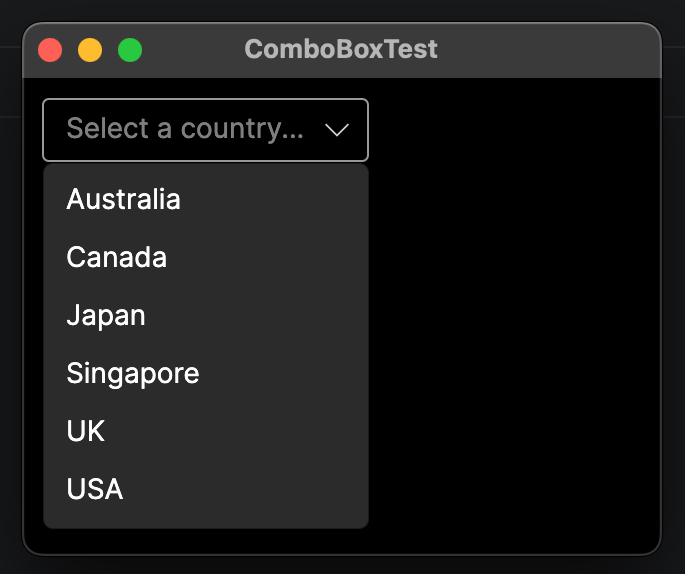
Using ObservableCollection<T> instead of List<T> means the ComboBox can update automatically if items are added or removed at runtime.
Custom item template
When your items are complex objects with multiple components (e.g., a user profile consisting of name, job, email, etc.), use ComboBox.ItemTemplate to control how each item appears in the dropdown. This lets you display multiple properties, icons, or custom layout:
- MainWindow.axaml
- MainWindowViewModel.cs
- User.cs
- Preview
<ComboBox ItemsSource="{Binding Users}"
          SelectedItem="{Binding SelectedUser}">
    <ComboBox.ItemTemplate>
        <DataTemplate>
            <StackPanel Orientation="Horizontal" Spacing="8">
                <Border Width="24" Height="24" CornerRadius="12"
                        Background="#6366F1">
                    <TextBlock Text="{Binding Initials}" Foreground="White"
                               HorizontalAlignment="Center"
                               VerticalAlignment="Center" FontSize="10" />
                </Border>
                <StackPanel>
                    <TextBlock Text="{Binding Name}" />
                    <TextBlock Text="{Binding Role}" FontSize="11" Foreground="Gray" />
                </StackPanel>
            </StackPanel>
        </DataTemplate>
    </ComboBox.ItemTemplate>
</ComboBox>
using System.Collections.ObjectModel;
using ComboBoxTest.Models;
using CommunityToolkit.Mvvm.ComponentModel;

namespace ComboBoxTest.ViewModels;

public partial class MainWindowViewModel : ViewModelBase
{
    public ObservableCollection<User> Users { get; } =
    [
        new() { Name = "Ray Sin", Role = "CEO" },
        new() { Name = "Scott Chegg", Role = "Manager" },
        new() { Name = "Isabelle Ringing", Role = "Analyst" }
    ];

    [ObservableProperty]
    private User? _selectedUser;
}
using System;
using System.Linq;

namespace ComboBoxTest.Models;

public class User
{
    public required string Name { get; init; }

    public required string Role { get; init; }

    public string Initials => string.Concat(
        Name.Split(' ', StringSplitOptions.RemoveEmptyEntries | StringSplitOptions.TrimEntries)
            .Select(word => char.ToUpperInvariant(word[0])));
}
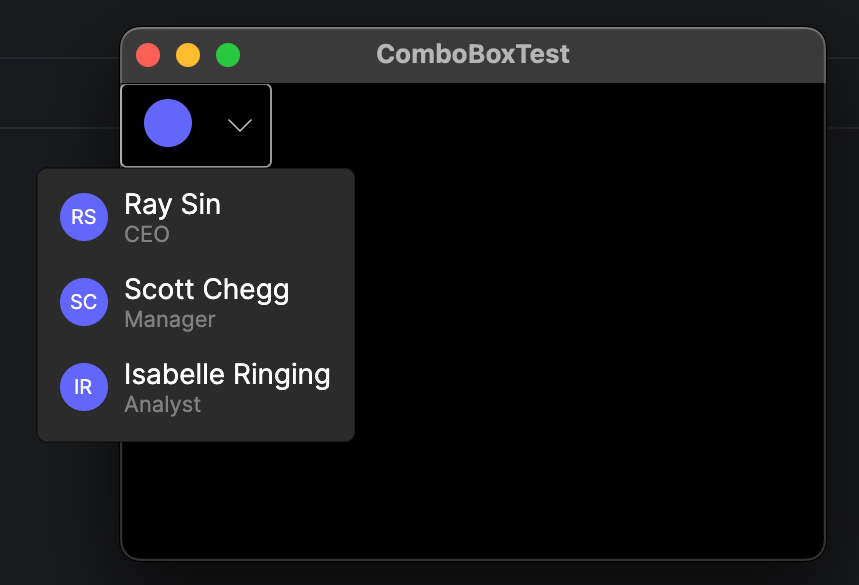
When you use a custom item template with complex objects, the ComboBox displays the selected item in the box using the same template as the items on the list. If you want different layouts for the selected item and the dropdown items, you can use a DataTemplateSelector or apply styles that target items inside the popup.
Binding to an enum
You can populate a ComboBox with all values of an enum by calling Enum.GetValues<T>() and exposing the result as an array.
- Window
- View model
<ComboBox ItemsSource="{Binding PriorityOptions}"
          SelectedItem="{Binding SelectedPriority}" />
public enum Priority { Low, Normal, High, Critical }

public partial class TaskViewModel : ObservableObject
{
    public Priority[] PriorityOptions { get; } = Enum.GetValues<Priority>();

    [ObservableProperty]
    private Priority _selectedPriority = Priority.Normal;
}
With display names
The method shown above displays the raw enum member names in the ComboBox. For example, "High" rather than "High Priority" in the previous example. If you want human-readable labels, wrap each value in a record and provide an ItemTemplate.
- Window
- View model
<ComboBox ItemsSource="{Binding PriorityOptions}"
          SelectedItem="{Binding SelectedPriority}">
    <ComboBox.ItemTemplate>
        <DataTemplate>
            <TextBlock Text="{Binding Label}" />
        </DataTemplate>
    </ComboBox.ItemTemplate>
</ComboBox>
public record PriorityOption(Priority Value, string Label);

public PriorityOption[] PriorityOptions { get; } = new[]
{
    new PriorityOption(Priority.Low, "Low Priority"),
    new PriorityOption(Priority.Normal, "Normal"),
    new PriorityOption(Priority.High, "High Priority"),
    new PriorityOption(Priority.Critical, "Critical!"),
};

[ObservableProperty]
private PriorityOption _selectedPriority;
Binding to SelectedValue
If you need just a single property of a complex item, rather than the whole object, use SelectedValueBinding to specify which property to extract and SelectedValue to bind the result. This binding is commonly used when you only need to store the ID or code of a composite data object.
<ComboBox ItemsSource="{Binding Countries}"
          SelectedValueBinding="{Binding Code}"
          SelectedValue="{Binding SelectedCountryCode}">
    <ComboBox.ItemTemplate>
        <DataTemplate>
            <TextBlock Text="{Binding Name}" />
        </DataTemplate>
    </ComboBox.ItemTemplate>
</ComboBox>
Static items in XAML
For a small, fixed set of options that do not change at runtime, you can define items directly in XAML using ComboBoxItem. This may be an appropriate option for settings menus or input forms, where the dropdown options are already decided early in the design stage.
- XAML
<ComboBox xmlns="https://github.com/avaloniaui"
          SelectedIndex="0"
          Margin="10">
    <ComboBoxItem Content="Small" />
    <ComboBoxItem Content="Medium" />
    <ComboBoxItem Content="Large" />
</ComboBox>
Type-to-search with AutoCompleteBox
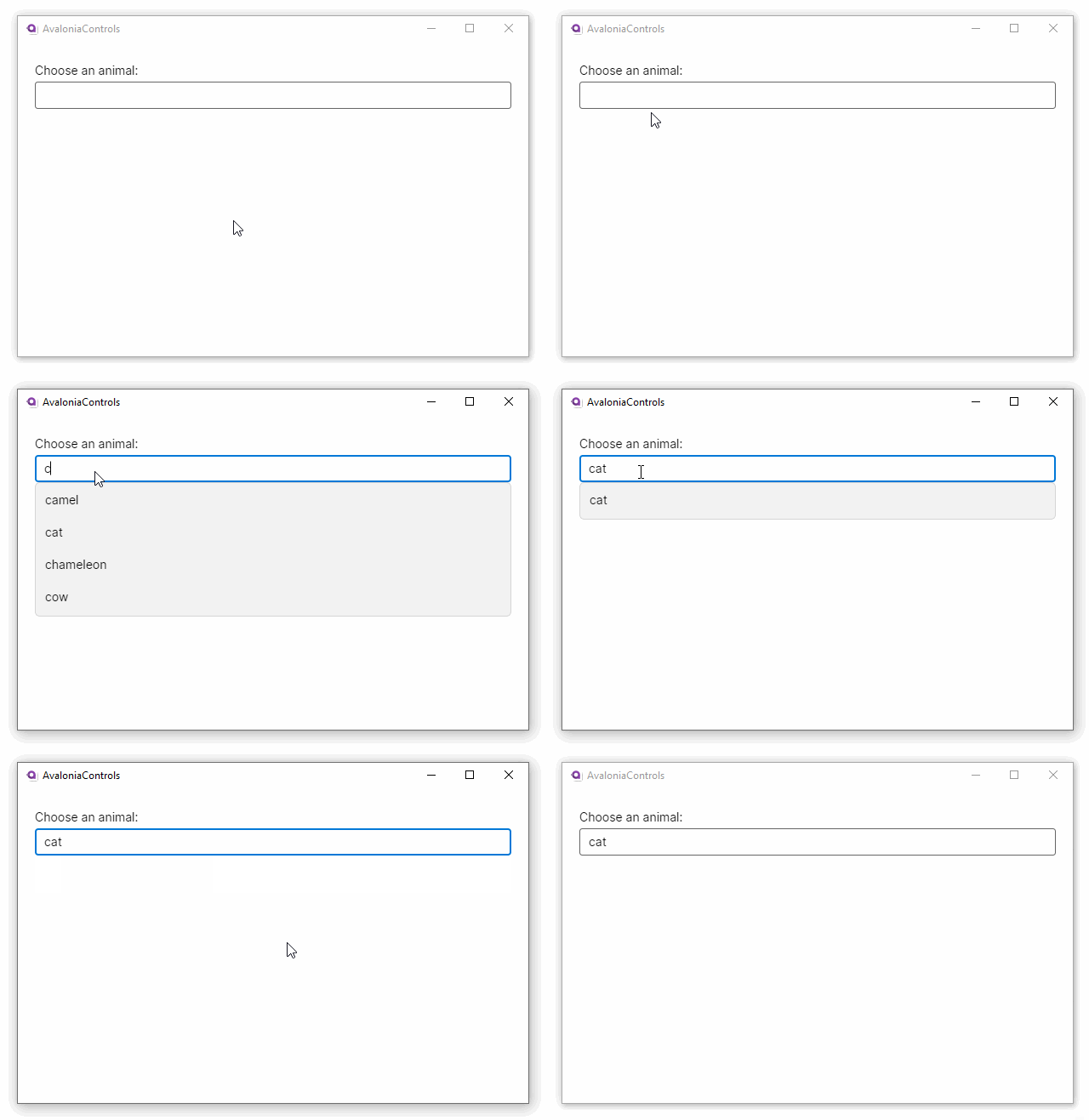
Avalonia's ComboBox can accept text input by setting IsEditable="True". However, this setting does not enable type-to-search functionality. If you require a type-to-search box, use AutoCompleteBox instead.
<!-- Basic AutoCompleteBox -->

<AutoCompleteBox ItemsSource="{Binding Animals}"
                 Text="{Binding SearchText}"
                 FilterMode="StartsWith"
                 MinimumPrefixLength="1" />
AutoCompleteBox filters the list as the user types. Choose from several built-in filter modes (StartsWith, Contains, ContainsCaseSensitive, and more), or provide a custom filter:
<!-- AutoCompleteBox with custom filter and a DataTemplate to search complex objects. -->

<AutoCompleteBox ItemsSource="{Binding Users}"
                 FilterMode="Custom"
                 TextFilter="{Binding UserFilter}"
                 PlaceholderText="Search users...">
    <AutoCompleteBox.ItemTemplate>
        <DataTemplate>
            <TextBlock Text="{Binding Name}" />
        </DataTemplate>
    </AutoCompleteBox.ItemTemplate>
</AutoCompleteBox>
Styling
Custom dropdown width
Set a width that applies only to the Popup inside the ComboBox template to ensure the dropdown is wide enough for its contents. As a demonstration, try adjusting Width in the preview below to MinWidth:
- XAML
<UserControl xmlns="https://github.com/avaloniaui">

    <UserControl.Styles>
        <Style Selector="ComboBox /template/ Popup">
            <Setter Property="Width" Value="20" />
        </Style>
    </UserControl.Styles>

    <ComboBox Margin="10">
        <ComboBoxItem Content="Short string" />
        <ComboBoxItem Content="Very long string" />
        <ComboBoxItem Content="Very very long string" />
    </ComboBox>

</UserControl>
Custom placeholder style
Change the appearance of the placeholder text by targeting the PlaceholderTextBlock element with a style. In this example, the :not(:disabled) pseudoclass is also specified so that the custom placeholder style always applies while the ComboBox is active.
- XAML
<UserControl xmlns="https://github.com/avaloniaui">

    <UserControl.Styles>
        <Style Selector="ComboBox:not(:disabled) /template/ TextBlock#PlaceholderTextBlock">
            <Setter Property="Foreground" Value="LimeGreen" />
        </Style>
    </UserControl.Styles>

    <ComboBox Margin="10"
              PlaceholderText="Select one...">
        <ComboBoxItem Content="Option 1" />
        <ComboBoxItem Content="Option 2" />
        <ComboBoxItem Content="Option 3" />
    </ComboBox>

</UserControl>
See also
- ComboBox reference
- How to bind to a collection: Collection binding basics.
- Introduction to data templates: Customizing how items are displayed.
- Collection views: Sorting, filtering, and grouping bound collections.