How to bind multiple properties
When a single target property depends on values from several sources, you can use MultiBinding to aggregate multiple Binding objects and produce a combined result through an IMultiValueConverter. The converter's Convert method runs each time any of the bound properties raises a change notification, so the target property stays in sync automatically.
MultiBinding works with view model properties, named controls, and other binding sources, just like a standard Binding.
MultiBinding only supports BindingMode.OneTime and BindingMode.OneWay. Two-way multi-bindings are not supported because there is no general way to reverse a multi-value conversion back to individual source values.
Prerequisites
Before you start, make sure you are familiar with:
- Data binding syntax and how
Bindingexpressions work. - Declaring resources in XAML with
x:Keyso you can reference converters viaStaticResource.
Understand IMultiValueConverter
IMultiValueConverter is similar to IValueConverter, but it receives a list of values instead of a single value. There is no ConvertBack method because aggregate operations are generally irreversible.
public interface IMultiValueConverter
{
    object? Convert(IList<object?> values, Type targetType, object? parameter, CultureInfo culture);
}
Your converter receives:
| Parameter | Purpose |
|---|---|
values | The current values from each child Binding, in declaration order. |
targetType | The type of the target property (for example, IBrush or string). |
parameter | An optional value from ConverterParameter. |
culture | The culture passed by the binding engine. |
During initialization, some entries in values may be UnsetValueType because the bindings have not yet resolved. Always check for this before processing.
Bind RGB sliders to a foreground brush
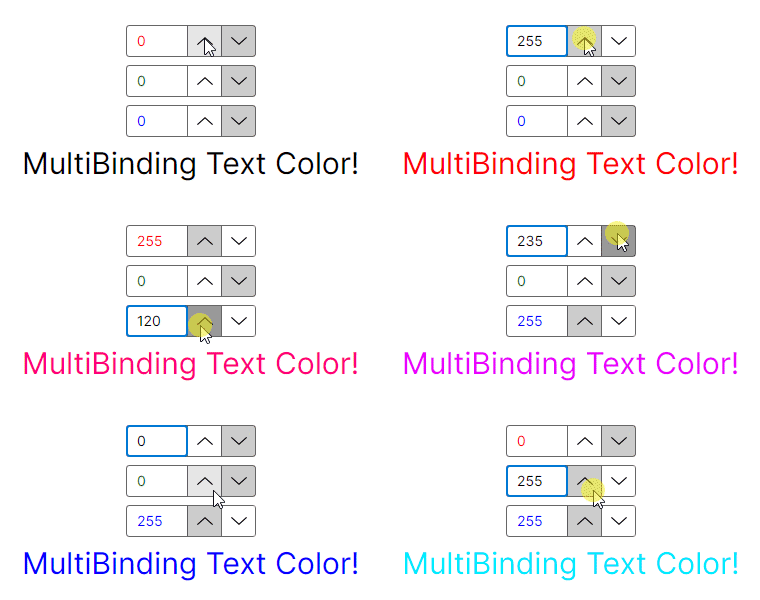
The following walkthrough binds three NumericUpDown controls (red, green, and blue channels) to the Foreground of a TextBlock, producing a live color preview.
Step 1: Define the XAML layout
Because MultiBinding requires property-element syntax for its child bindings, you write each <Binding> element explicitly. Use ElementName to point at the named NumericUpDown controls.
<Window xmlns="https://github.com/avaloniaui"
        xmlns:x="http://schemas.microsoft.com/winfx/2006/xaml"
        xmlns:local="clr-namespace:ExampleApp">

    <Window.Resources>
        <local:RgbToBrushMultiConverter x:Key="RgbToBrushMultiConverter" />
    </Window.Resources>

    <StackPanel HorizontalAlignment="Center" VerticalAlignment="Center" Spacing="8">
        <NumericUpDown x:Name="red" Minimum="0" Maximum="255" Increment="20" Value="0" Foreground="Red" />
        <NumericUpDown x:Name="green" Minimum="0" Maximum="255" Increment="20" Value="0" Foreground="Green" />
        <NumericUpDown x:Name="blue" Minimum="0" Maximum="255" Increment="20" Value="0" Foreground="Blue" />

        <TextBlock Text="MultiBinding Text Color!" FontSize="24">
            <TextBlock.Foreground>
                <MultiBinding Converter="{StaticResource RgbToBrushMultiConverter}">
                    <Binding Path="Value" ElementName="red" />
                    <Binding Path="Value" ElementName="green" />
                    <Binding Path="Value" ElementName="blue" />
                </MultiBinding>
            </TextBlock.Foreground>
        </TextBlock>
    </StackPanel>
</Window>
Step 2: Implement the converter
Type-check each value carefully. NumericUpDown.Value is decimal?, so your converter must handle decimal, null, and UnsetValueType. Return BindingOperations.DoNothing for any value that is not yet resolved so the target property keeps its previous value while the bindings initialize.
using System;
using System.Collections.Generic;
using System.Globalization;
using System.Linq;
using Avalonia.Data;
using Avalonia.Data.Converters;
using Avalonia.Media;
using Avalonia.Media.Immutable;

public sealed class RgbToBrushMultiConverter : IMultiValueConverter
{
    public object? Convert(IList<object?> values, Type targetType, object? parameter, CultureInfo culture)
    {
        // Ensure all bindings are provided and the target type is compatible
        if (values?.Count != 3 || !targetType.IsAssignableFrom(typeof(ImmutableSolidColorBrush)))
            throw new NotSupportedException();

        // Ensure all bindings are the correct type
        if (!values.All(x => x is decimal or UnsetValueType or null))
            throw new NotSupportedException();

        // Return DoNothing while any binding is still unresolved
        if (values[0] is not decimal r ||
            values[1] is not decimal g ||
            values[2] is not decimal b)
            return BindingOperations.DoNothing;

        byte a = 255;
        var color = new Color(a, (byte)r, (byte)g, (byte)b);
        return new ImmutableSolidColorBrush(color);
    }
}
Step 3: Run the application
Drag any of the three sliders and the text color updates immediately:
Simplify with FuncMultiValueConverter
For straightforward conversions you can skip creating a full class. Avalonia's FuncMultiValueConverter<TIn, TOut> lets you define the logic as a lambda. Expose the converter as a static property so XAML can reference it with x:Static.
using System.Linq;
using Avalonia.Data.Converters;

public static class Converters
{
    public static readonly FuncMultiValueConverter<string, string> FullName =
        new(parts => string.Join(" ", parts.Where(p => !string.IsNullOrEmpty(p))));
}
<TextBlock>
    <TextBlock.Text>
        <MultiBinding Converter="{x:Static local:Converters.FullName}">
            <Binding Path="FirstName" />
            <Binding Path="LastName" />
        </MultiBinding>
    </TextBlock.Text>
</TextBlock>
This approach removes the need for a resource declaration and keeps simple converters close to their usage site.
Tips
- Register converters as resources when you reference them with
StaticResource, or expose them asstaticfields and usex:Staticto avoid the resource lookup entirely. - Return
BindingOperations.DoNothinginstead ofnullwhen your converter cannot produce a valid result yet. This tells the binding engine to leave the target property unchanged. - Consider a
MarkupExtensionto simplify the XAML syntax when you reuse the sameMultiBindingpattern in many places.
See also
- MultiBinding: Full
MultiBindingreference, includingStringFormat,FallbackValue, and the properties table. - How to create a custom data binding converter: Single-value
IValueConverterimplementations. - Built-in data binding converters: Converters shipped with Avalonia.
- Data binding syntax: Binding parameters including
StringFormatandConverterParameter.