TextTrimming
Overview
The TextTrimming property allows you to control how text is displayed when it exceeds the maximum available space in a control. This property is accessible by text-displaying controls, such as TextBlock, SelectableTextBlock or ContentPresenter.
Text trimming adds an ellipsis (…) to indicate truncated text, instead of abruptly cutting off the text.
Avalonia uses the Unicode ellipsis character U+2026 by default, not three periods.
Trimming Modes
Avalonia provides five text trimming options:
- None
- CharacterEllipsis
- WordEllipsis
- PrefixCharacterEllipsis
- LeadingCharacterEllipsis
None
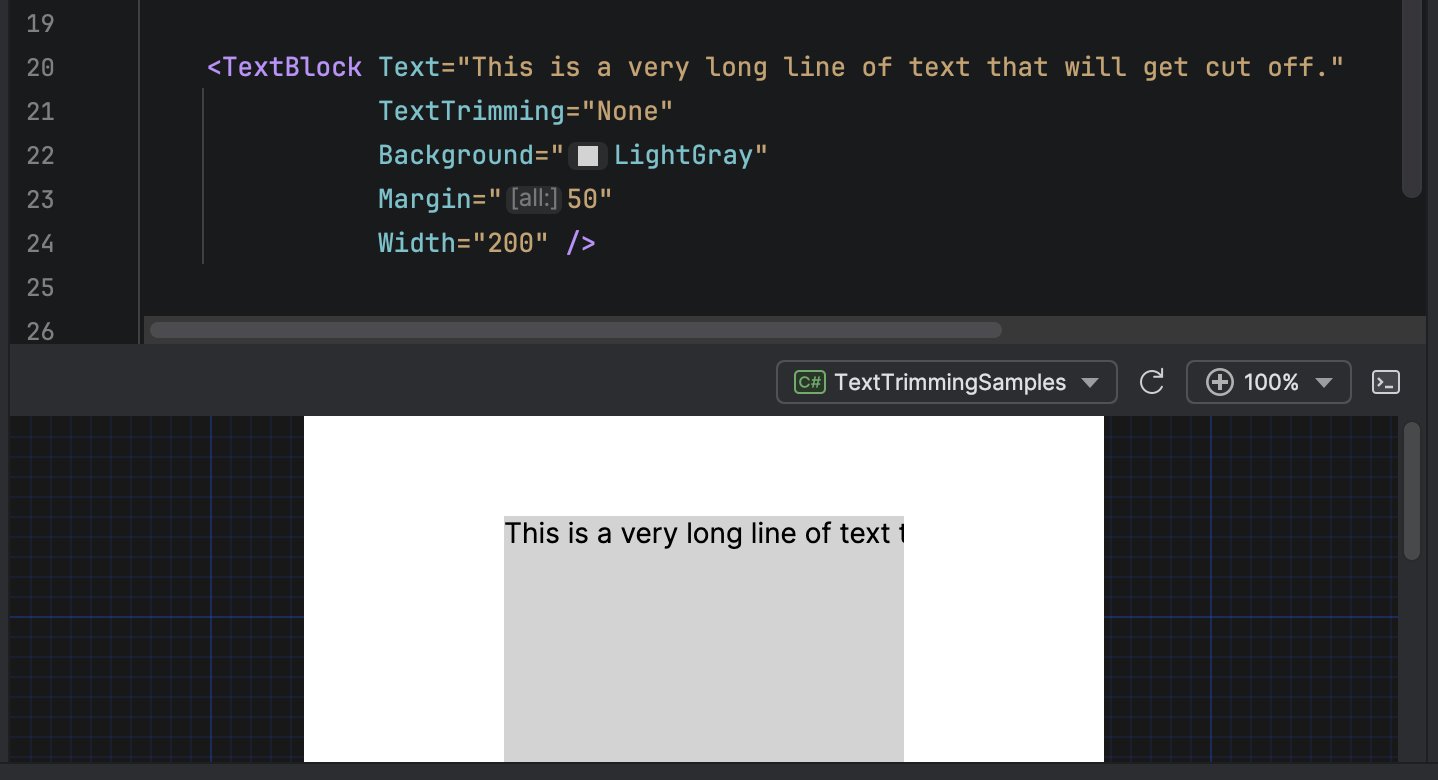
No trimming is applied. Text is cut off when it reaches the boundary of the control.
<TextBlock Text="This is a very long line of text that will get cut off."
           TextTrimming="None"
           Width="200" />
CharacterEllipsis
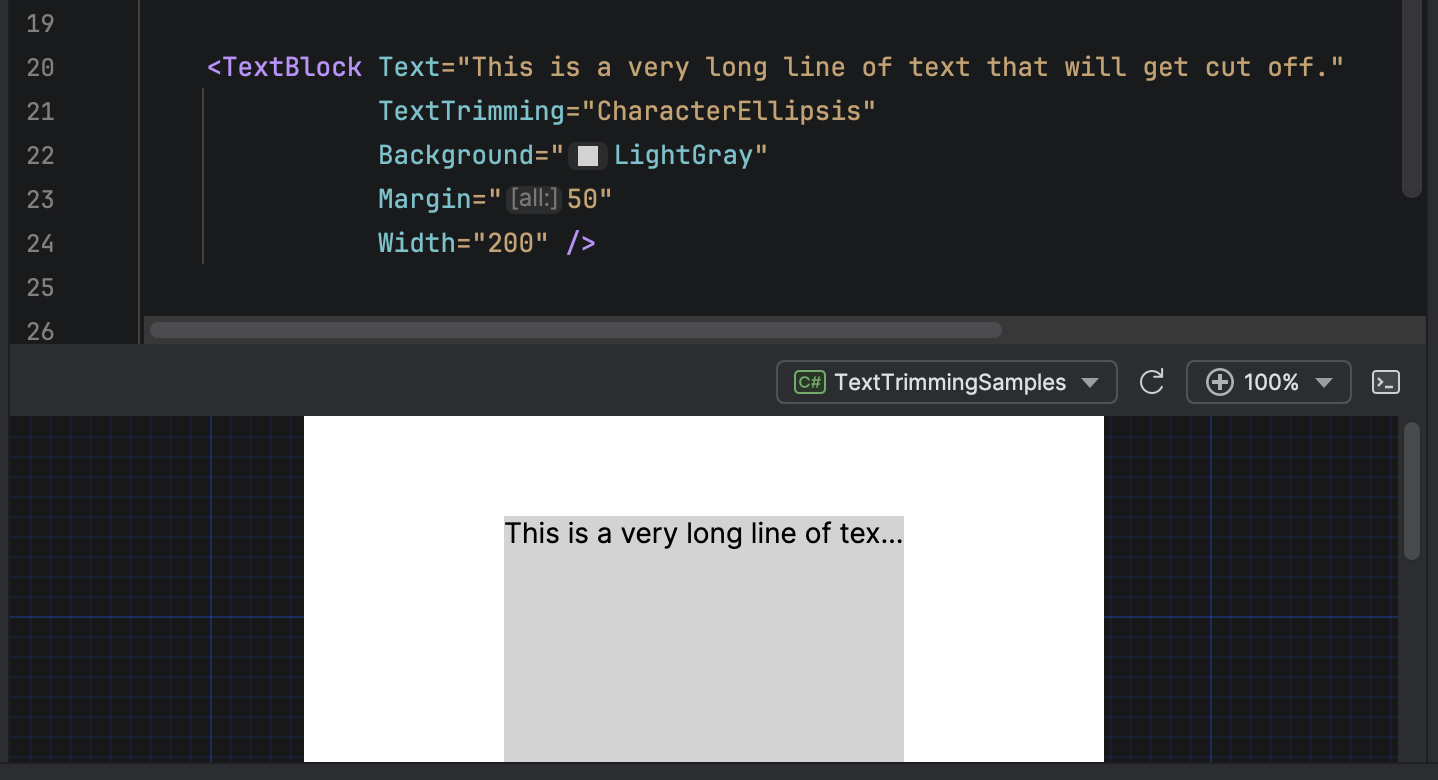
Trims text after a character ends. An ellipsis is added where the text is truncated.
Intended for general-purposes trimming, when your UI design requires precise space usage.
<TextBlock Text="This is a very long line of text that will get cut off."
           TextTrimming="CharacterEllipsis"
           Width="200" />
WordEllipsis
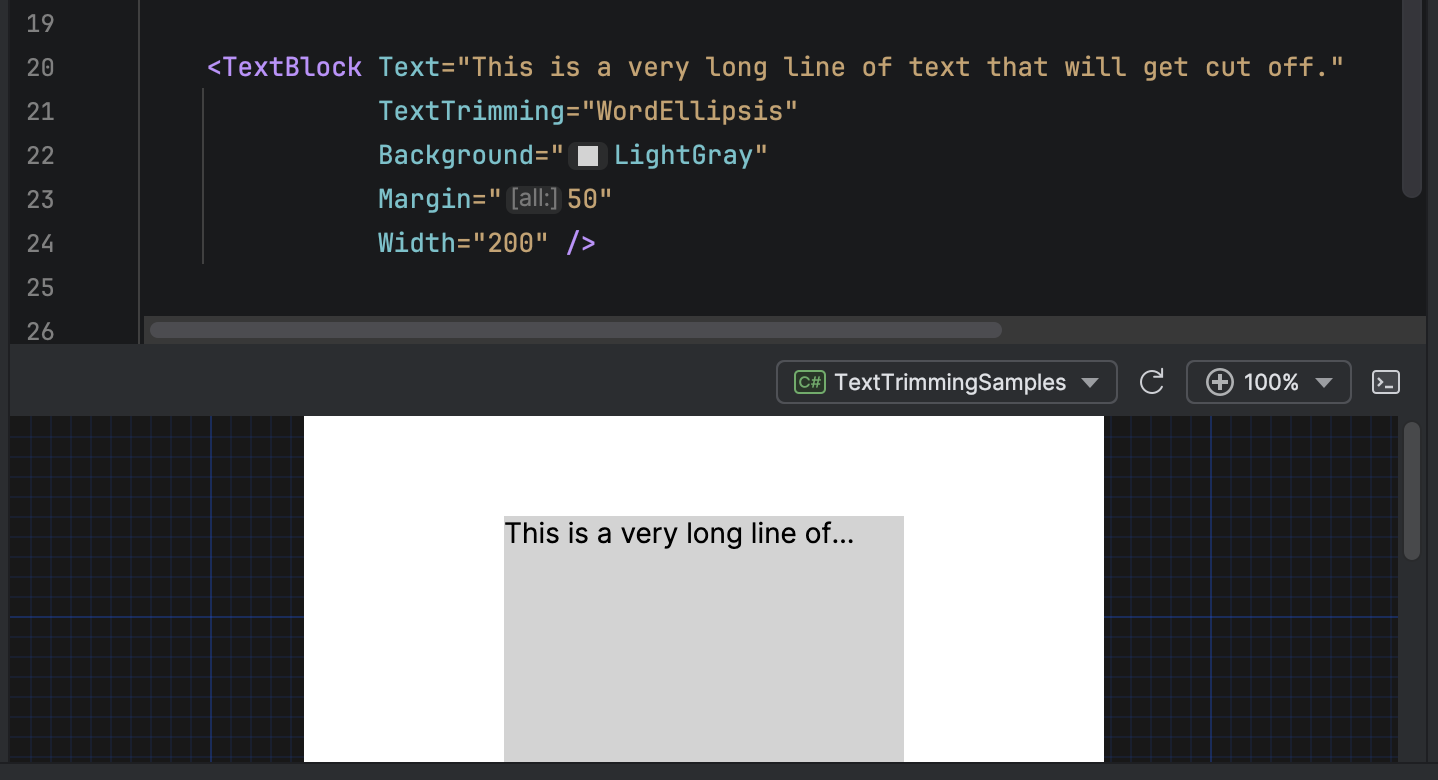
Trims text after a word ends. Whole words are preserved, and an ellipsis is added when this is no longer possible.
Intended to maximize readability by preventing incomplete words from appearing.
<TextBlock Text="This is a very long line of text that will get cut off."
           TextTrimming="WordEllipsis"
           Width="200" />
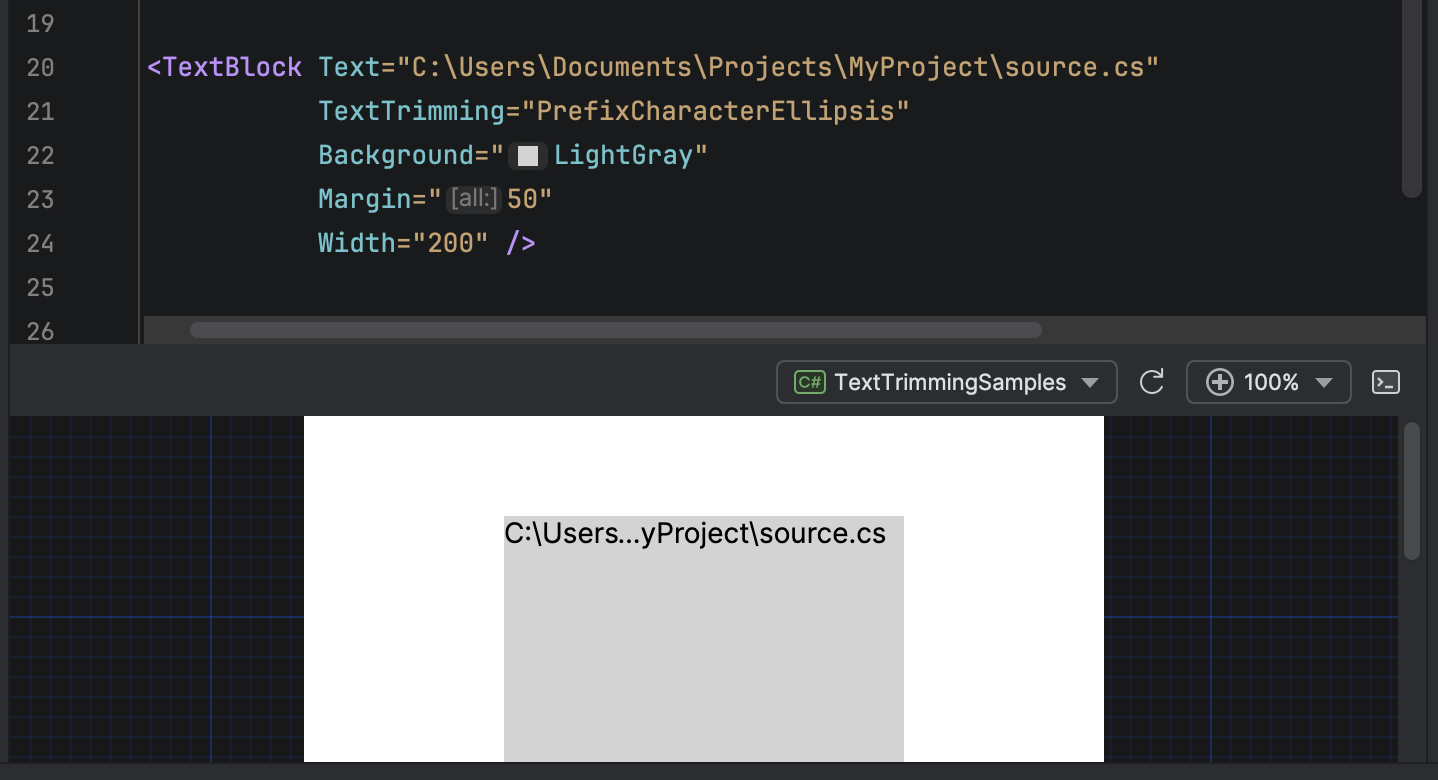
PrefixCharacterEllipsis
Trims text in the middle. The beginning and end of the text string are displayed, with an ellipsis separating them.
Default is to show the first eight characters, then an ellipsis, then however many characters are required to fill the available space.
Intended for file paths, URLs, or any other text where both the beginning and end should be displayed.
<TextBlock Text="C:\Users\Documents\Projects\MyProject\source.cs"
           TextTrimming="PrefixCharacterEllipsis"
           Width="200" />
LeadingCharacterEllipsis
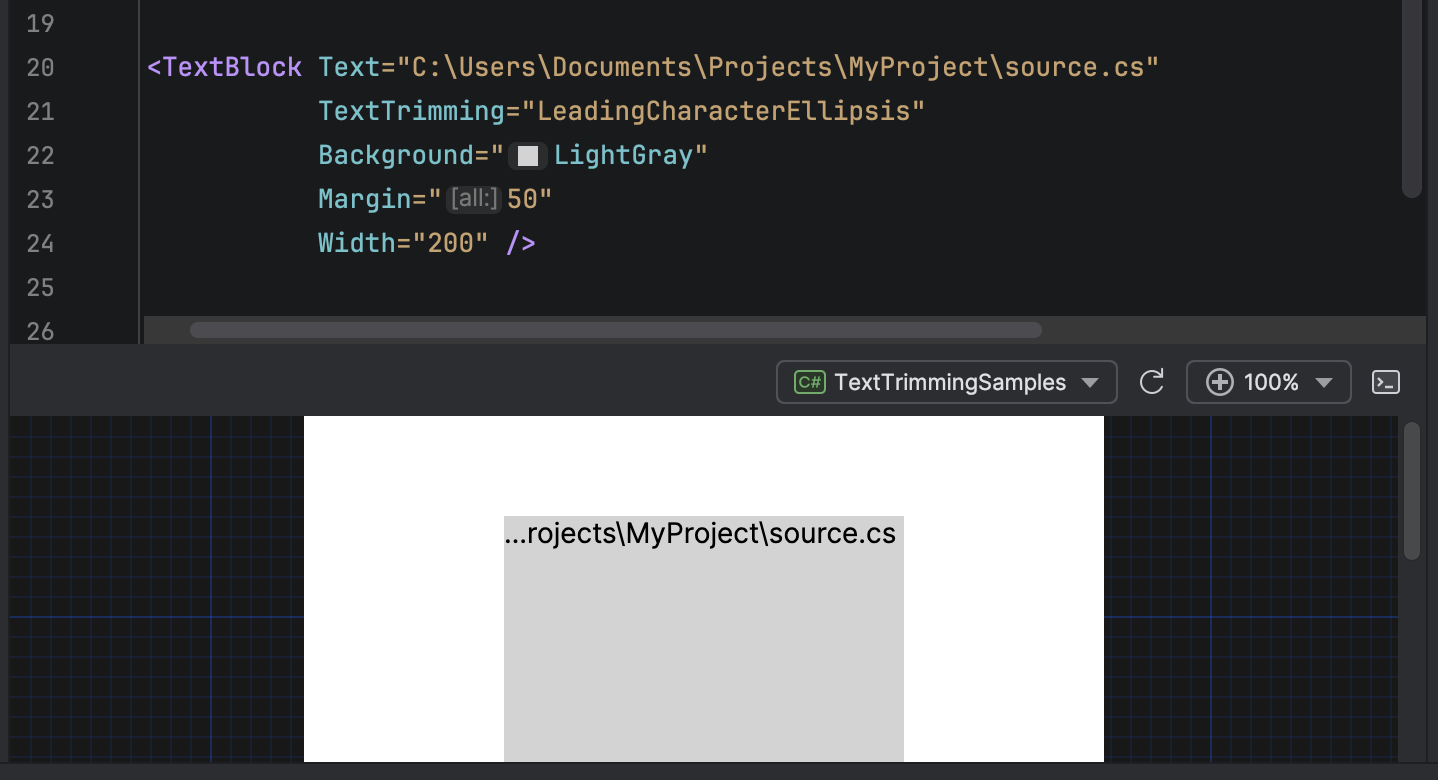
Trims text from the beginning. An ellipsis starts the displayed text, followed by the characters at the end of the text.
Intended for file paths or any other text where only the end is important.
<TextBlock Text="C:\Users\Documents\Projects\MyProject\source.cs"
           TextTrimming="LeadingCharacterEllipsis"
           Width="200" />
Example uses
Combining with MaxWidth
Combine TextTrimming with MaxWidth to create responsive text displays that maintain a consistent area on your UI.
<TextBlock Text="{Binding UserName}"
           MaxWidth="300"
           TextTrimming="CharacterEllipsis" />
Combining with TextWrapping
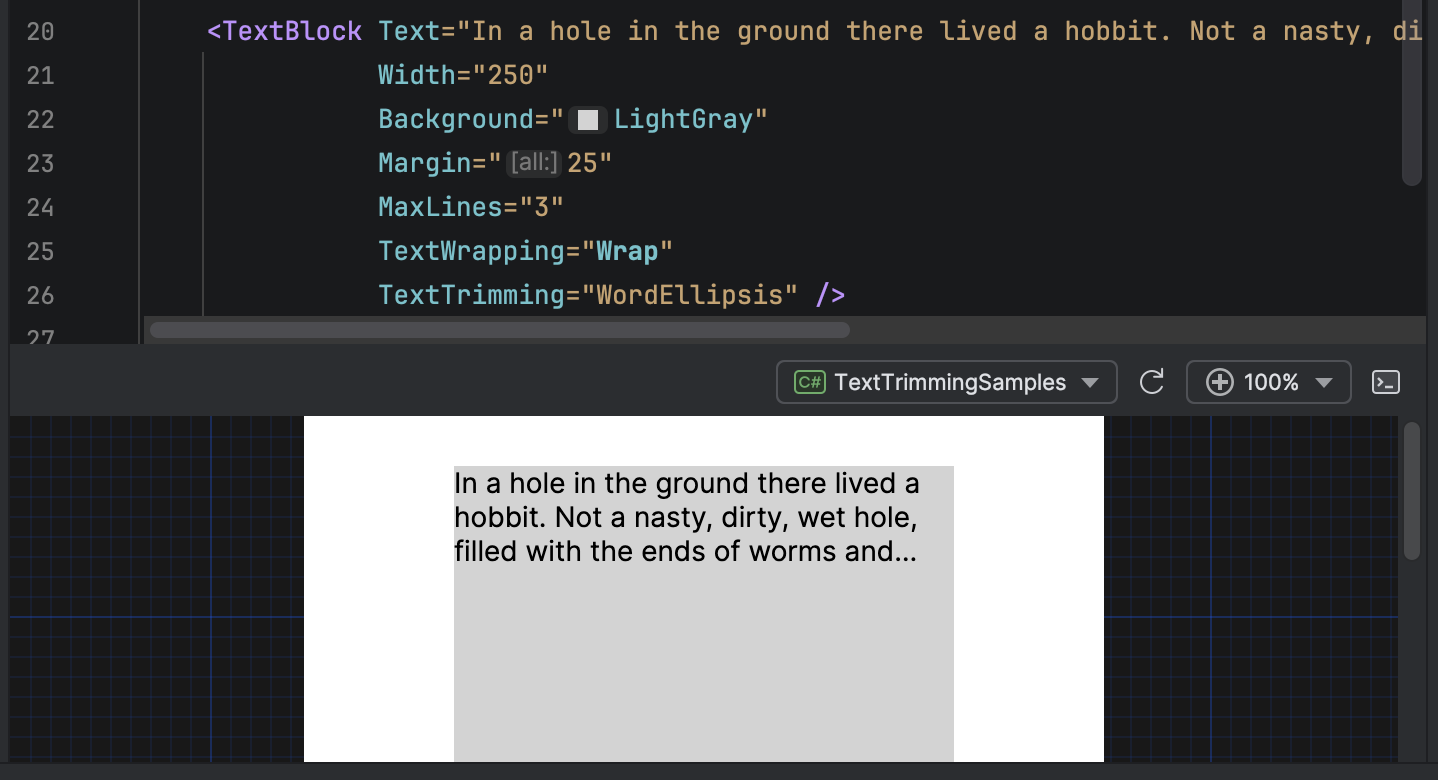
Combine TextTrimming and TextWrapping to apply trimming to the last visible line when wrapping is enabled.
<TextBlock Text="{Binding Content}"
           Width="300"
           MaxLines="3"
           TextWrapping="Wrap"
           TextTrimming="WordEllipsis" />