Controls
This page covers the key control differences you will encounter when migrating from WPF to Avalonia, including base class changes, renamed controls, and behavioral differences.
UIElement and FrameworkElement
WPF's UIElement and FrameworkElement are non-templated control base classes, which roughly equate to the Avalonia Control class. WPF's Control class on the other hand is a templated control - Avalonia's equivalent of this is TemplatedControl.
- In WPF/UWP you would inherit from the
Controlclass to create a new templated control, but in Avalonia you should inherit fromTemplatedControl. - In WPF/UWP you would inherit from the
FrameworkElementclass to create a new custom-drawn control, but in Avalonia you should inherit fromControl.
So to recap:
UIElement🠞ControlFrameworkElement🠞ControlControl🠞TemplatedControl
RenderTransforms and RenderTransformOrigin
RenderTransformOrigins are different in WPF and Avalonia: If you apply a RenderTransform, keep in mind that default value for the RenderTransformOrigin in Avalonia is RelativePoint.Center. In WPF the default value is RelativePoint.TopLeft (0, 0). In controls like Viewbox the same code will lead to a different rendering behavior:
In WPF:
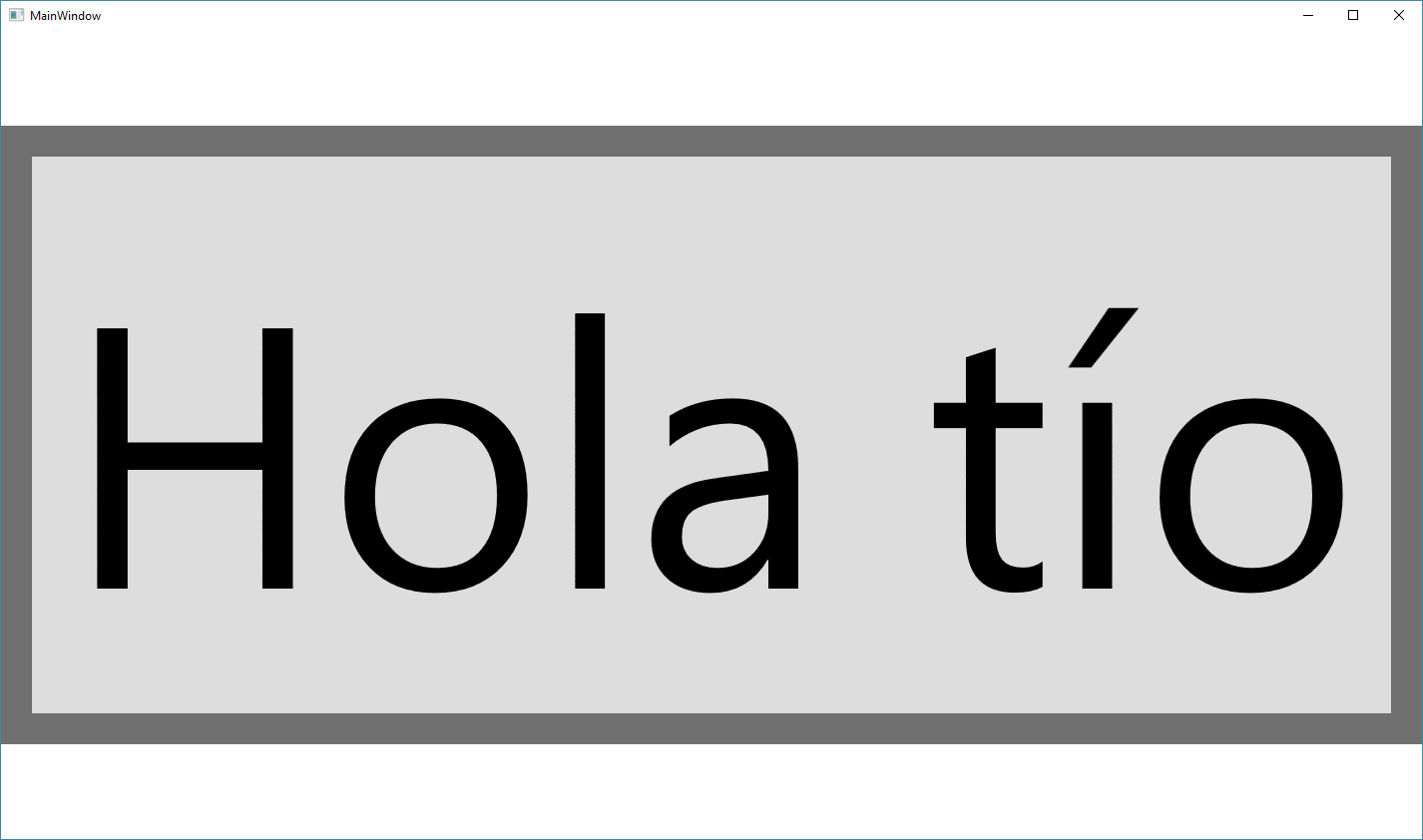
In Avalonia:

In AvaloniaUI, to get the same scale transform we should indicate that the RenderTransformOrigin is the TopLeft part of the Visual.
Grid
Column and row definitions can be specified in Avalonia using strings, avoiding the clunky syntax in WPF:
<Grid ColumnDefinitions="Auto,*,32" RowDefinitions="*,Auto">
A common use of Grid in WPF is to stack two controls on top of each other. For this purpose in Avalonia you can use a Panel which is more lightweight than Grid.
ToolTip
WPF uses ToolTip as a property or child element. Avalonia uses the ToolTip.Tip attached property:
<Button ToolTip="Save the document" Content="Save" />
<Button ToolTip.Tip="Save the document" Content="Save" />
ItemsControl and ItemsSource
WPF's ItemsControl.Items can be set directly. In Avalonia, use ItemsSource for data binding or add children directly in XAML:
<ListBox ItemsSource="{Binding MyItems}">
    <ListBox.ItemTemplate>
        <DataTemplate>
            <TextBlock Text="{Binding Name}" />
        </DataTemplate>
    </ListBox.ItemTemplate>
</ListBox>
Note: In Avalonia, ItemsSource replaces ItemsSource (same name) but Items is read-only. You cannot assign a new collection to Items.
DataGrid
DataGrid is a separate NuGet package in Avalonia:
<PackageReference Include="Avalonia.Controls.DataGrid" Version="$(AvaloniaVersion)" />
You must also include the DataGrid theme in App.axaml:
<Application.Styles>
    <FluentTheme />
    <StyleInclude Source="avares://Avalonia.Controls.DataGrid/Themes/Fluent.axaml" />
</Application.Styles>
StatusBar
Avalonia does not have a StatusBar control. Use a styled DockPanel or StackPanel at the bottom of your window:
<DockPanel>
    <Border DockPanel.Dock="Bottom" Background="{DynamicResource SystemChromeLowColor}" Padding="8,4">
        <TextBlock Text="Ready" />
    </Border>
    <!-- Main content -->
</DockPanel>
RichTextBox
Avalonia does not include a built-in RichTextBox. For rich text editing, use a third-party control such as AvalonEdit.
See also
- WPF to Avalonia Cheat Sheet: Quick reference for all control mappings.
- Controls Reference: Full Avalonia controls documentation.