CarouselPage
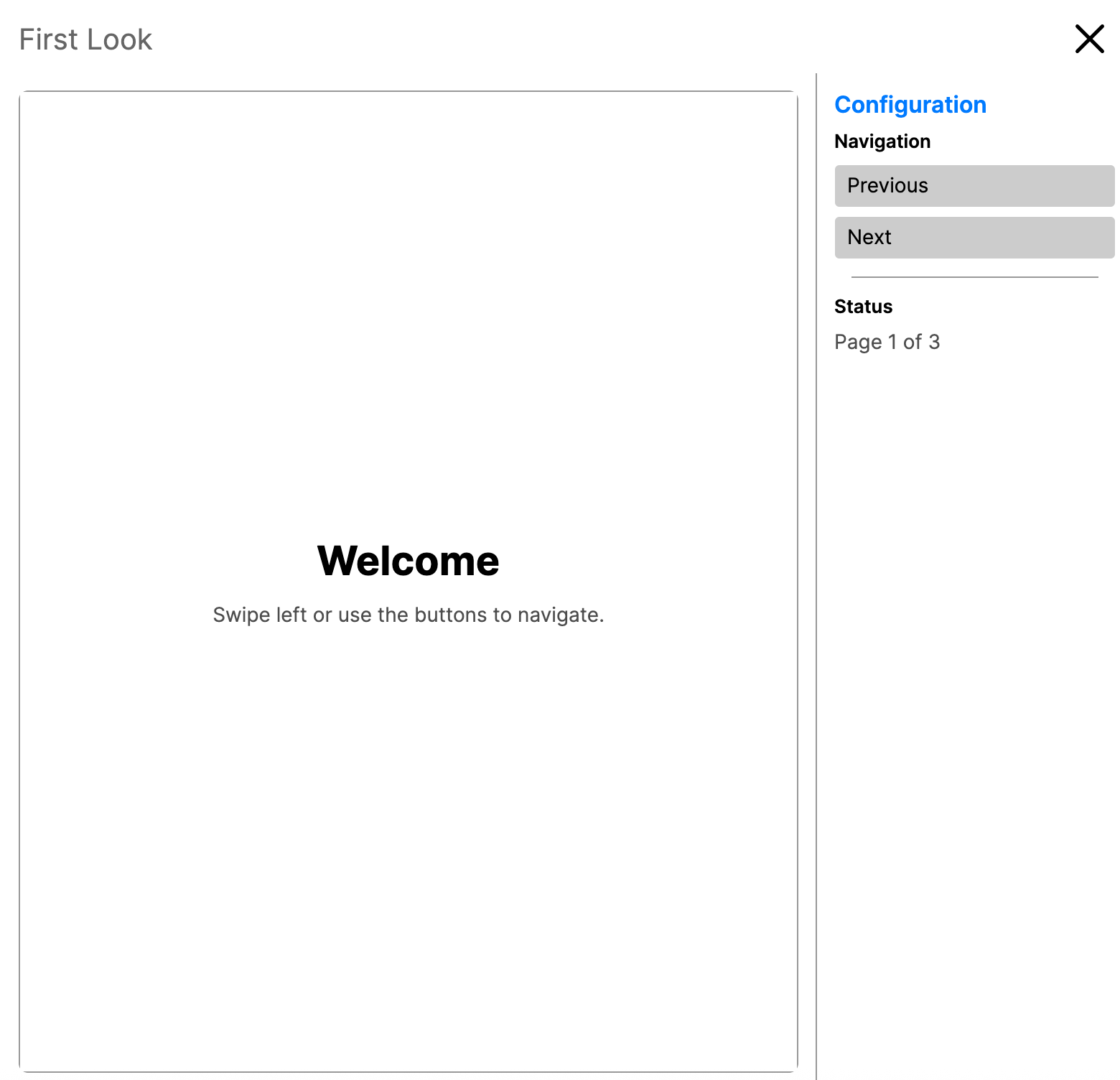
CarouselPage displays a collection of pages in a horizontally scrollable carousel. Users swipe or use arrow keys to move between pages. An optional page transition animates the change.
CarouselPage extends SelectingMultiPage, which extends MultiPage. This inheritance chain provides:
PagescollectionItemsSourcePageTemplateSelectedIndexSelectedPageCurrentPageSelectionChangedeventPagesChangedeventCurrentPageChangedevent
Useful Properties
You will probably use these properties most often:
| Property | Type | Default | Description |
|---|---|---|---|
Pages | IEnumerable<Page>? | null | The collection of child pages. This is the XAML content property. Supports any IEnumerable<Page>, including observable collections. |
ItemsSource | IEnumerable? | null | View-model collection. When set, takes precedence over Pages as the item source. Use together with PageTemplate to convert each item into a Page. |
PageTemplate | IDataTemplate? | DefaultPageDataTemplate | Data template used to generate Page instances when the source contains data objects rather than pages directly. |
PageTransition | IPageTransition? | null | Animated transition played when the selected page changes. |
IsGestureEnabled | bool | true | Enables swipe and scroll-wheel gestures to navigate between pages. |
IsKeyboardNavigationEnabled | bool | true | Enables arrow, Home, and End keys to navigate between pages. |
ItemsPanel | ITemplate<Panel?> | VirtualizingCarouselPanel | The panel template used to arrange page items inside the underlying Carousel. |
SelectedIndex | int | -1 | Zero-based index of the currently selected page. |
SelectedPage | Page? | null | Read-only. The currently selected page. |
Events
| Event | Description |
|---|---|
SelectionChanged | Raised when the selected page changes. Provides PreviousPage and CurrentPage. |
CurrentPageChanged | Raised when CurrentPage changes. |
PagesChanged | Raised when the Pages collection changes. |
Navigation lifecycle events (NavigatedTo, Navigating, NavigatedFrom) fire on each child Page as the active page changes.
Keyboard Navigation
When IsKeyboardNavigationEnabled is true:
- Left and right arrow keys move to the previous and next page. RTL layouts reverse the direction.
- Up arrow moves to the previous page. Down arrow moves to the next page.
Homejumps to the first page.Endjumps to the last page.
Gesture Navigation
When IsGestureEnabled is true:
- Swipe left or right to move between pages.
- Mouse scroll wheel moves between pages. RTL layouts reverse the direction.
Examples
Basic CarouselPage in XAML
<CarouselPage xmlns="https://github.com/avaloniaui"
              xmlns:x="http://schemas.microsoft.com/winfx/2009/xaml"
              x:Class="MyApp.OnboardingCarousel">

    <ContentPage Header="Welcome">
        <StackPanel VerticalAlignment="Center"
                    HorizontalAlignment="Center"
                    Spacing="16">
            <TextBlock Text="Welcome to MyApp"
                       FontSize="28"
                       HorizontalAlignment="Center" />
            <TextBlock Text="Swipe to learn more"
                       Opacity="0.6"
                       HorizontalAlignment="Center" />
        </StackPanel>
    </ContentPage>

    <ContentPage Header="Features">
        <StackPanel VerticalAlignment="Center"
                    HorizontalAlignment="Center"
                    Spacing="16">
            <TextBlock Text="Powerful Features"
                       FontSize="28"
                       HorizontalAlignment="Center" />
            <TextBlock Text="Everything you need in one place"
                       Opacity="0.6"
                       HorizontalAlignment="Center" />
        </StackPanel>
    </ContentPage>

    <ContentPage Header="Get Started">
        <StackPanel VerticalAlignment="Center"
                    HorizontalAlignment="Center"
                    Spacing="16">
            <TextBlock Text="Ready?"
                       FontSize="28"
                       HorizontalAlignment="Center" />
            <Button Content="Get Started"
                    HorizontalAlignment="Center"
                    Click="OnGetStartedClick" />
        </StackPanel>
    </ContentPage>

</CarouselPage>
CarouselPage in Code
var carousel = new CarouselPage
{
    Pages = new AvaloniaList<Page>
    {
        new ContentPage { Header = "Step 1", Content = step1View },
        new ContentPage { Header = "Step 2", Content = step2View },
        new ContentPage { Header = "Step 3", Content = step3View }
    }
};

window.Page = carousel;
Page Transitions
Animate the page change with a built-in transition:
var carousel = new CarouselPage
{
    PageTransition = new PageSlide(TimeSpan.FromMilliseconds(300))
};

// Other available transitions
carousel.PageTransition = new CrossFade(TimeSpan.FromMilliseconds(300));
carousel.PageTransition = new PageSlide(TimeSpan.FromMilliseconds(300), PageSlide.SlideAxis.Vertical);
In XAML, PageSlide supports both horizontal and vertical orientation:
<CarouselPage>
    <CarouselPage.PageTransition>
        <PageSlide Duration="0:0:0.3" Orientation="Horizontal" />
    </CarouselPage.PageTransition>
    <!-- pages -->
</CarouselPage>
Programmatic Navigation
// Jump to a specific page by index
carousel.SelectedIndex = 2;

// Navigate forward
private void OnNext()
{
    var pageCount = (carousel.Pages as IList)?.Count ?? 0;
    if (carousel.SelectedIndex < pageCount - 1)
        carousel.SelectedIndex++;
}

// Navigate backward
private void OnPrevious()
{
    if (carousel.SelectedIndex > 0)
        carousel.SelectedIndex--;
}
Responding to Page Changes
The SelectionChanged event provides PreviousPage and CurrentPage through PageSelectionChangedEventArgs:
carousel.SelectionChanged += (sender, e) =>
{
    var pageCount = (carousel.Pages as IList)?.Count ?? 0;
    Console.WriteLine($"Page {carousel.SelectedIndex + 1} of {pageCount}: {e.CurrentPage?.Header}");
};
Tracking Navigation Lifecycle Events
Subscribe to lifecycle events on individual child pages to track when they become active or inactive:
var page = new ContentPage { Header = "Home" };

page.NavigatedTo += (_, args) =>
    Console.WriteLine($"NavigatedTo: Home (from {(args.PreviousPage as ContentPage)?.Header})");

page.NavigatedFrom += (_, args) =>
    Console.WriteLine($"NavigatedFrom: Home (to {(args.DestinationPage as ContentPage)?.Header})");
Or override the lifecycle methods in a subclass:
public partial class FeaturePage : ContentPage
{
    protected override void OnNavigatedTo(NavigatedToEventArgs args)
    {
        base.OnNavigatedTo(args);
        // This page is now visible, start animations or load data.
        _ = PlayIntroAnimationAsync();
    }
}
Configuring Gestures and Keyboard
Toggle gesture and keyboard navigation independently:
<CarouselPage IsGestureEnabled="True"
              IsKeyboardNavigationEnabled="True">
    <CarouselPage.PageTransition>
        <PageSlide Duration="0:0:0.3" Orientation="Horizontal" />
    </CarouselPage.PageTransition>
    <!-- pages -->
</CarouselPage>
// Disable swipe when content has conflicting horizontal scroll
carousel.IsGestureEnabled = false;

// Disable keyboard when embedded in a form with its own arrow key handling
carousel.IsKeyboardNavigationEnabled = false;
Data-Driven Pages with ItemsSource
When ItemsSource is set, it takes precedence over Pages. Use PageTemplate to convert each item into a Page:
<CarouselPage xmlns="https://github.com/avaloniaui"
              xmlns:x="http://schemas.microsoft.com/winfx/2009/xaml"
              xmlns:vm="clr-namespace:MyApp.ViewModels"
              x:Class="MyApp.PhotoCarousel"
              ItemsSource="{Binding Photos}">

    <CarouselPage.PageTemplate>
        <DataTemplate x:DataType="vm:PhotoViewModel">
            <ContentPage Header="{Binding Title}">
                <Image Source="{Binding ImageSource}"
                       Stretch="Uniform" />
            </ContentPage>
        </DataTemplate>
    </CarouselPage.PageTemplate>

</CarouselPage>
In code, use ObservableCollection for dynamic updates and FuncDataTemplate to create pages:
var items = new ObservableCollection<PhotoViewModel>(viewModel.Photos);

var carousel = new CarouselPage
{
    ItemsSource = items,
    PageTemplate = new FuncDataTemplate<PhotoViewModel>((photo, _) =>
        new ContentPage
        {
            Header = photo.Title,
            Content = new Image
            {
                Source = photo.ImageSource,
                Stretch = Stretch.Uniform
            }
        })
};

// Add or remove items at runtime, the carousel updates automatically
items.Add(new PhotoViewModel { Title = "New Photo", ImageSource = newBitmap });

CarouselPage Inside a NavigationPage
Embed a CarouselPage inside a NavigationPage for stack navigation:
window.Page = new NavigationPage { Content = new OnboardingCarousel() };
The CarouselPage.Header is shown in the navigation bar title, and the back button appears when the stack depth is greater than 1.
Dynamic Page Management
Add and remove pages at runtime. The carousel updates automatically:
var pages = new AvaloniaList<Page>();
carousel.Pages = pages;

// Add a page
pages.Add(new ContentPage
{
    Header = "New Page",
    Content = new TextBlock { Text = "Added dynamically" }
});

// Remove a page
if (pages.Count > 1)
    pages.RemoveAt(pages.Count - 1);